

Using Video Wall on your Mac
Everything the Mac app does, button by button. Not set up yet? Start with Mac setup.
See every camera at once
The sidebar on the left lists All Cameras, Activity, your groups, and every camera on the account. The wall on the right shows whichever of those you pick. Every camera is live; resize the window and the grid refits itself.
- Sidebar — hides or shows the sidebar (⌃⌘S). A dot beside a camera means it’s live right now.
- Drag a camera in the sidebar to reorder the wall, or onto a group to add it there. Right-click a camera for Open in New Window, Show History and Hide from Wall.
- Hover a tile for the speaker (sound from that camera on the wall; one plays at a time), Open in New Window and Open Camera. Click a tile to open the camera; arrow keys move the highlight and Return opens it.
Use the toolbar
Top right of the window, left to right.
- Grid — every tile the same size. The column count picks itself so tiles stay close to 16:9 in whatever shape the window is.
- Featured — the first camera large, the rest in a strip beside it — for a front door you always want big. Drag a camera to the top of the wall to make it the featured one. Each group remembers its own layout.
- Auto-Cycle — tours your cameras full screen, one at a time (⌥⌘P or Space). ← and → skip; Esc or Stop ends it. The interval is in Settings › Auto-Cycle. See Auto-Cycle.
- History — opens the panel of recent events for the selected camera (⌥⌘I). More under Activity and History.
The View menu has the rest: camera names on or off (⌥⌘N), Camera Fit (crop tall doorbell pictures to fill their tile, or show the whole frame) and Tile Spacing. The same settings live in Settings › Wall.
Open, zoom and pan a camera
Click a tile and that camera fills the window. Pinch or scroll to zoom, drag to pan, ⌘] and ⌘[ step to the next and previous camera. The toolbar changes to the camera’s own buttons:
- Back — to the wall (Esc).
- Sound — plays this camera’s audio; Mute stops it (⇧⌘M). Settings › Wall can play sound automatically whenever you open a camera.
- Snapshot — copies the current frame to the clipboard. File › Save Snapshot… (⌘S) saves it as a picture; the Share button sends it anywhere.
- Picture in Picture — hands the camera to macOS, which floats it in a corner over every app. Hover the floating window to move it, resize it, or bring it back. See Picture in Picture.
- Open in New Window — pops the camera into its own window (⌥⌘O), below.
Keep a camera on top of other apps
A camera in its own window is a 16:9 window like any other: put it in a corner, on another display, or beside the document you’re working in. Open as many as you like. Hover one for its three buttons:
- Pin — keeps the window above every other app, so it stays visible while you type in something else. Click again to unpin.
- Sound — this camera’s audio, in this window.
- Show in Wall — brings the main window forward with this camera selected.
A doorbell ring can open the doorbell’s camera in a floating window on its own, with sound — that’s under Alerts.
The Video Wall icon in the menu bar is the whole app at a glance: a thumbnail of every camera, refreshed on its own, and the last few events. It keeps working after you close the wall window, and it’s what keeps alerts coming.
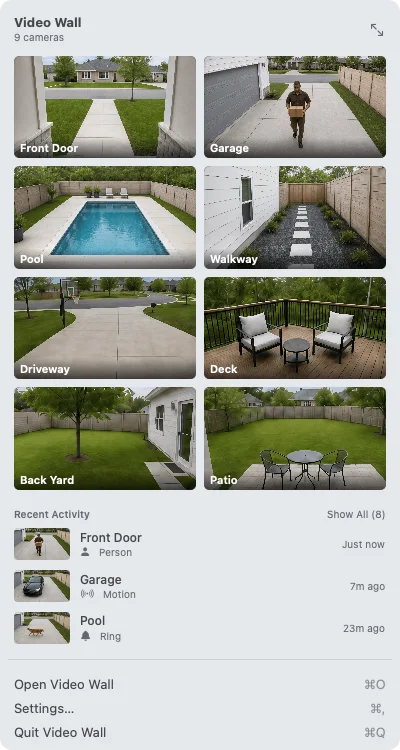
- Click a camera to open it in the wall; right-click for Open in New Window. Drag thumbnails to reorder the wall.
- Recent Activity lists the latest events across your cameras; Show All opens the Activity page.
- The arrows top right switch between small and large thumbnails. Turn the icon off in Settings › General if you’d rather not have it.
Add widgets to the wall and the desktop
On the wall
A clock, the weather for a US ZIP code, and an Activity feed can sit in the grid as tiles beside your cameras — the same widgets as the TV apps and the web wall. Turn them on in Settings › Widgets; drag them around like cameras; right-click one to hide it. They sit out Auto-Cycle. See Widgets.
On the desktop
Mac desktop widgets live outside the app. Right-click the desktop, choose Edit Widgets, find Video Wall, and add Camera (one camera, in three sizes) or Camera Wall (up to nine). They show the latest picture from each camera; click one and the app opens it live. Edit a Camera widget to choose which camera it shows.
Sort cameras into groups
A group is a wall of its own: the front yard, the shop floor, the cameras a second display should show. Click New Group in the sidebar, name it, then drag cameras (and widgets) in. Each group keeps its own order and its own Grid or Featured layout. Right-click a group to rename it, give it an icon, or delete it. Groups are also in Settings › Groups, with checkboxes if you’d rather not drag.
Two displays, two walls: open a second window with File › New Window, pick a group in each, and move one to the other screen. The Cameras menu and ⌘1–⌘9 follow whichever window is in front.
Look back at recent events
Activity
Activity in the sidebar is the account’s recent events across every camera, newest first, with a thumbnail of each. Play opens the clip in its own window; Live jumps to that camera.
History
History in the toolbar (⌥⌘I) opens a panel of the selected camera’s own events, filtered by People, Vehicles, Packages, Animals, Motion or Doorbell. Double-click an event to play it.
A clip plays in its own window with the usual controls. Save Clip… saves the video to your Mac and the Share button sends it anywhere. Clips need a Ring Protect plan — see Recording & history.
Get doorbell and motion alerts
Turn on Notify me on this Mac in Settings › Notifications and the Mac shows a notification, with a picture, for the kinds of event you choose — doorbell rings, people, packages, vehicles, animals, other motion — from the cameras you choose. Click one to open that camera.
Open the doorbell camera when someone rings pops the doorbell’s camera up in a floating window with sound, so you see who’s there without leaving what you’re doing. Alerts arrive while Video Wall is running; keep the menu bar icon on to get them with the wall closed. Your phone’s Ring alerts are unaffected.
Why a camera says PAUSED
A Ring camera can’t send its own motion and doorbell alerts while it’s streaming, so the wall stops streaming when no camera window is visible (minimized, hidden, covered, or the Mac asleep) and resumes when one is. A tile says PAUSED while that’s the case. Battery cameras and doorbells can also be set to Auto in Settings › Cameras, which streams once and then rests so they stay free to alert; see Streaming mode.
Turn a spare display into a camera wall
View › Enter Wall Display (⌃⌘D) fills the screen with the wall and hides the toolbar, the sidebar and the pointer. For a spare Mac or display that should always be a camera wall, turn on Use this Mac as a wall display in Settings › General, pick the display, and turn on Open Video Wall at login: the wall opens itself every time the Mac starts, optionally in Auto-Cycle. Keep the display awake stops the screen sleeping while cameras are showing.
Keyboard shortcuts
Everything in the menus has a shortcut where it earns one. The camera numbers follow the wall’s order, so the first nine cameras in the sidebar are ⌘1 to ⌘9.
- ⌘1 – ⌘9
- Open the first nine cameras on the wall
- ⌘0
- Back to All Cameras
- ⌘] / ⌘[
- Next / previous camera while one is open
- Esc
- Back to the wall (or stop Auto-Cycle)
- ⌥⌘P
- Start or stop Auto-Cycle
- Space
- Start Auto-Cycle from the wall
- ⇧⌘M
- Mute or unmute the selected camera
- ⌘R
- Refresh cameras and restart every stream
- ⌥⌘O
- Open the selected camera in a new window
- ⌘S
- Save a snapshot of the selected camera
- ⌘W
- Close the window
- ⌘,
- Settings
- ⌥⌘I
- Show or hide History
- ⌥⌘N
- Show or hide camera names
- ⌃⌘D
- Enter or exit Wall Display
- ⌃⌘S
- Show or hide the sidebar
- ← → ↑ ↓
- Move the highlight between tiles; Return opens the highlighted camera
The Shortcuts app
Video Wall offers three actions to the Shortcuts app and Siri: Show Camera (“Show my Garage camera in Video Wall”), Start Auto-Cycle and Show Wall. Search for Video Wall when adding an action, or just ask.
Requires macOS 14 Sonoma or later. The app is Video Wall Live Desktop in the Mac App Store.
Still stuck? Tell us which TV and camera you’re on — we usually reply within a day.
Contact support