

Turn on 24/7 recording
Continuous recording gives the smoothest live feed on the TV and keeps each camera’s event history complete. Set it per camera in the Ring app — about a minute each.
Which cameras: 24/7 recording is available on Pro, Power Pro, and Plug-in cameras only — on battery cameras it would drain the battery, so leave those on Motion.
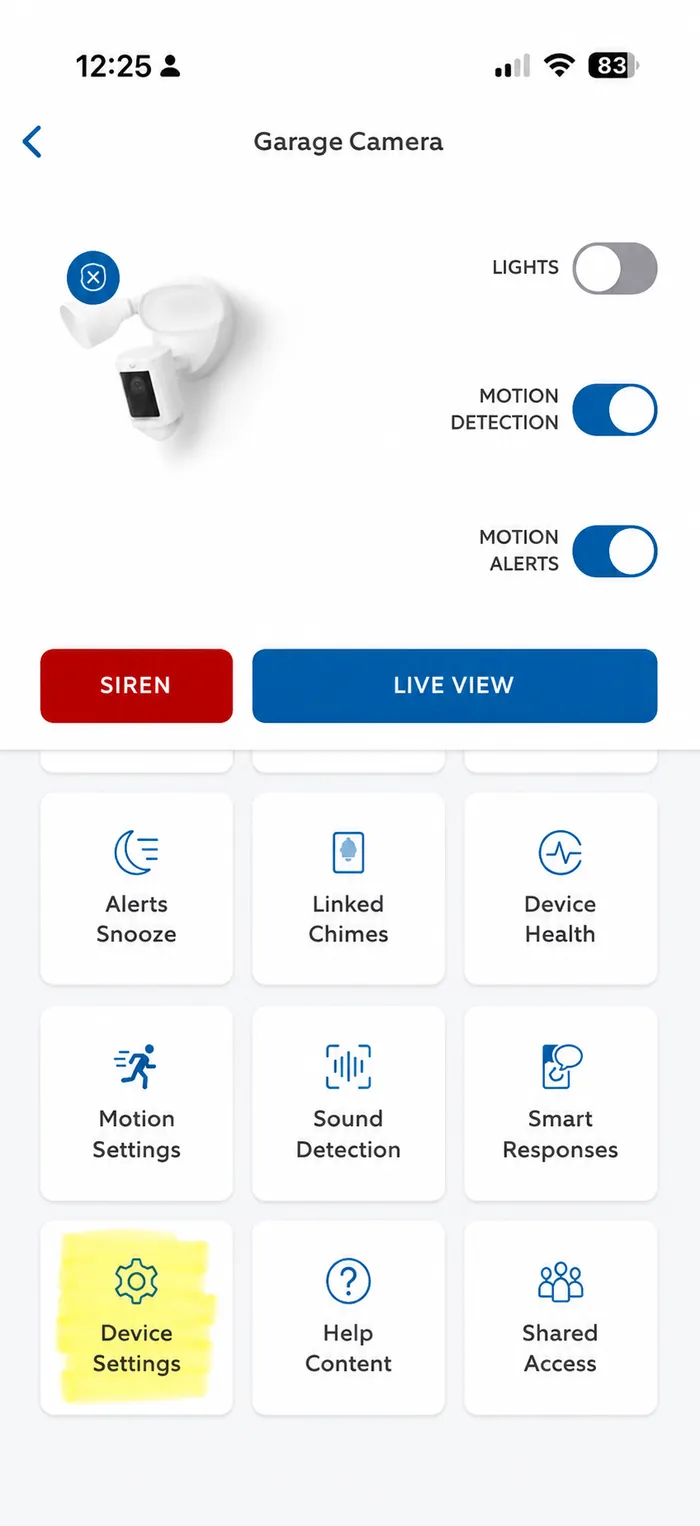
Open Device Settings.
In the Ring app, open the camera you want to record continuously, then tap Device Settings.
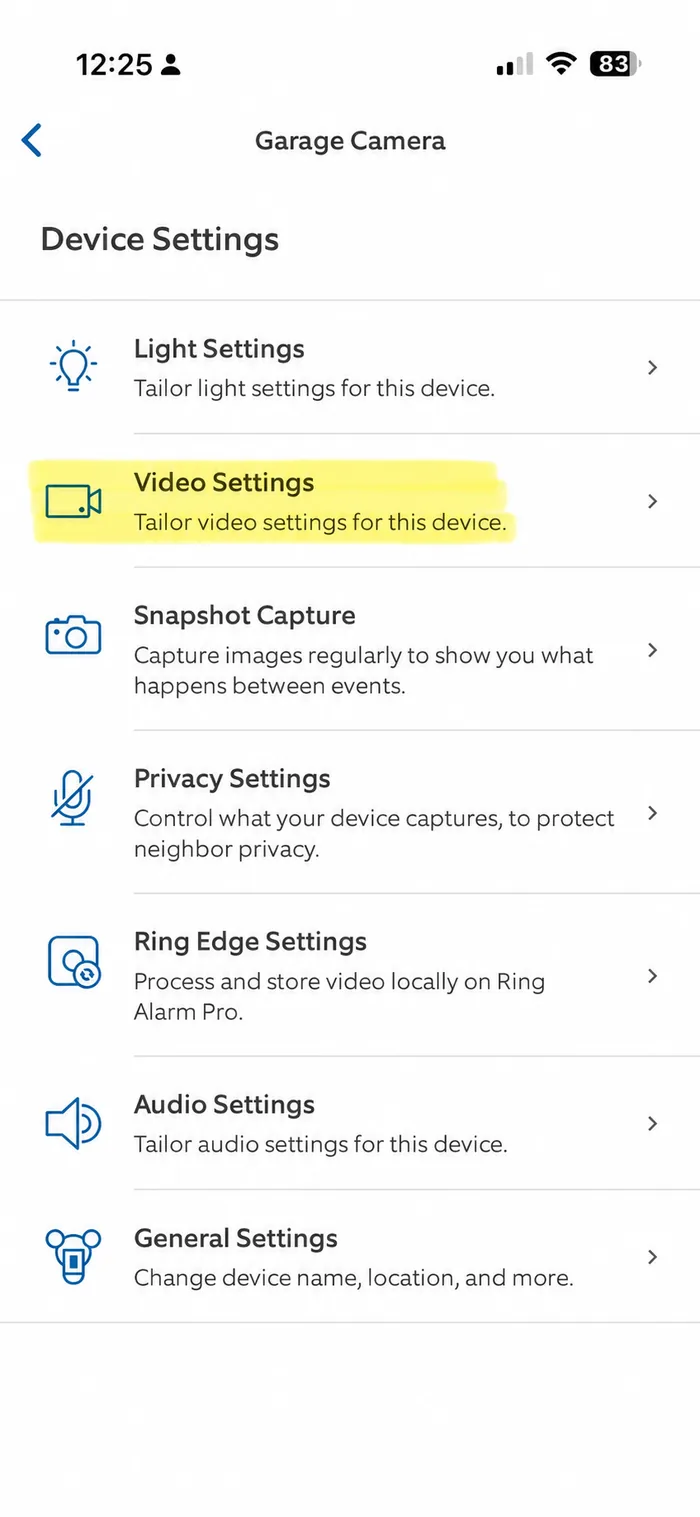
Tap Video Settings.
Tap Video Settings from the list.
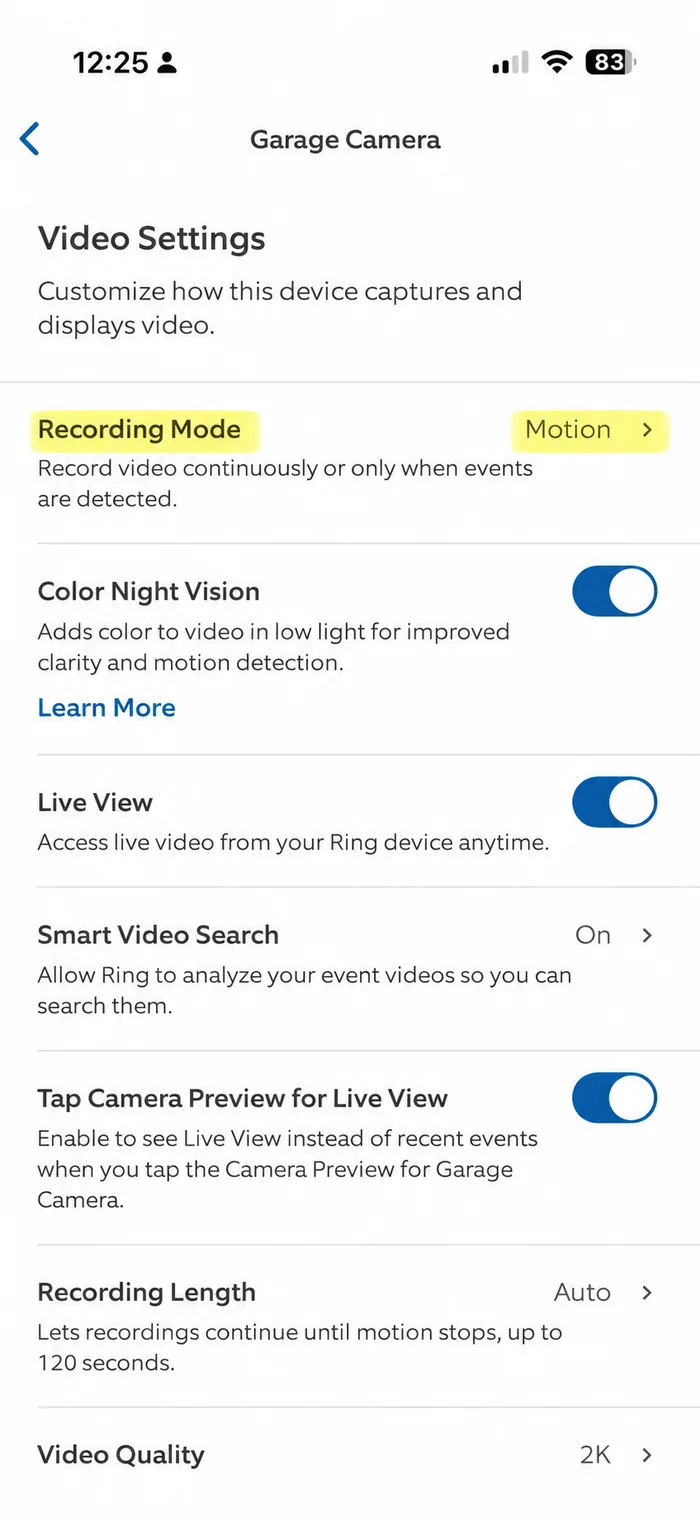
Tap Recording Mode.
Recording Mode is set to Motion by default. Tap it to change.
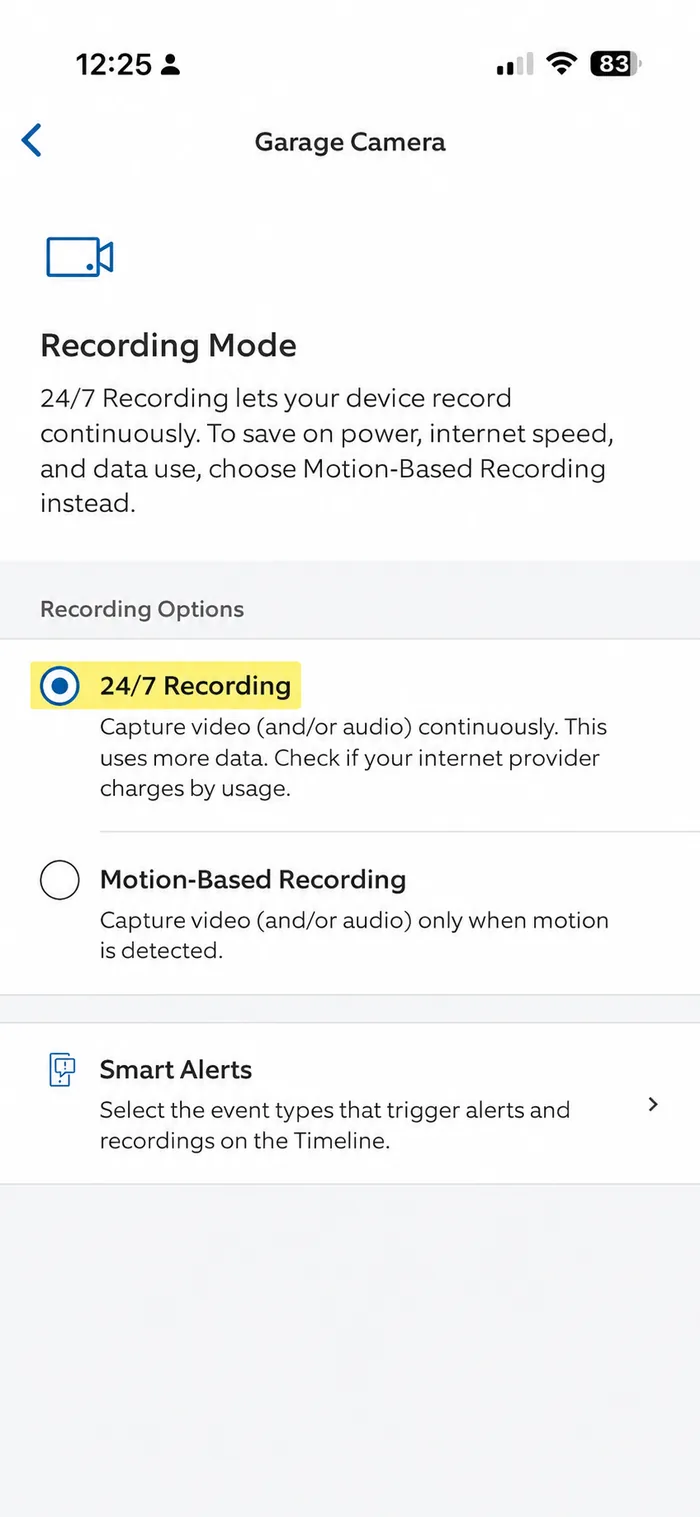
Choose 24/7 Recording.
Select 24/7 Recording from the recording options.
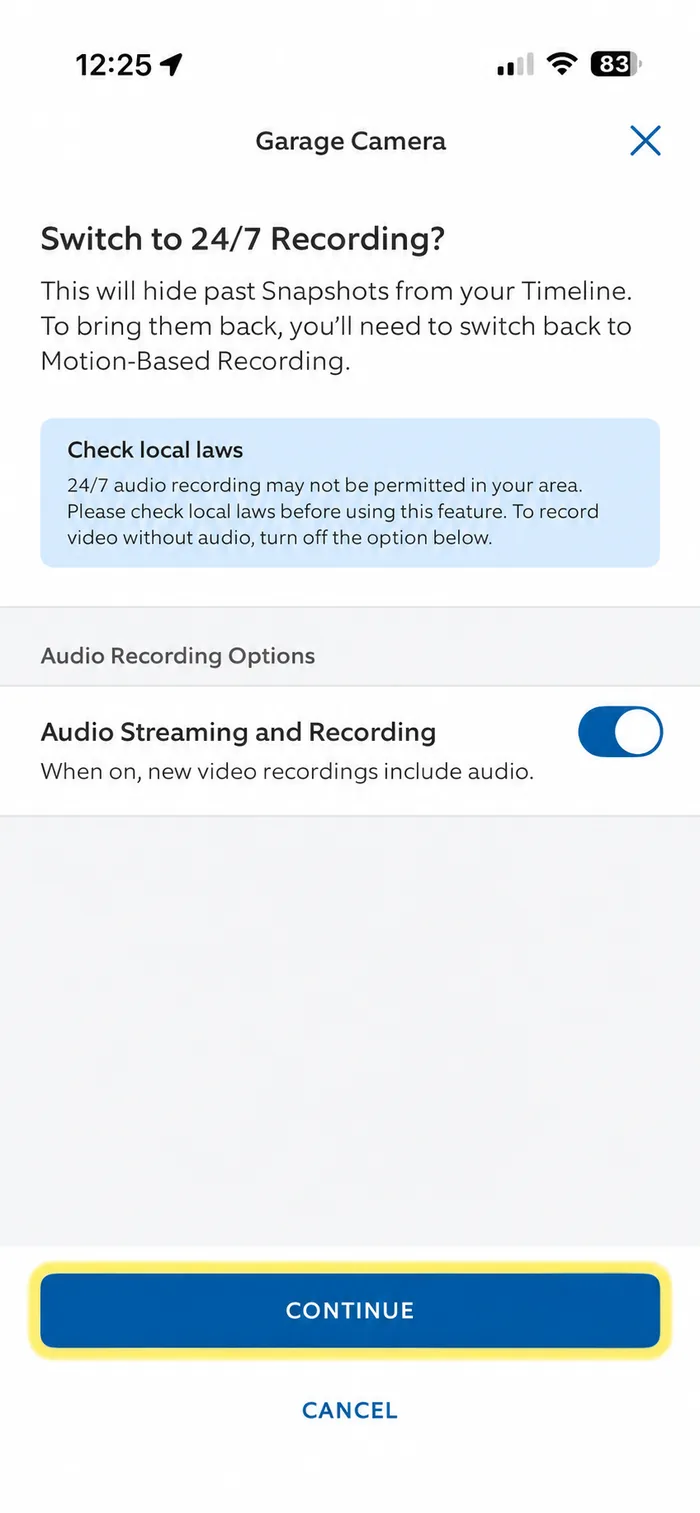
Confirm and continue.
Read the heads-up about local laws and audio. Tap Continue to confirm.
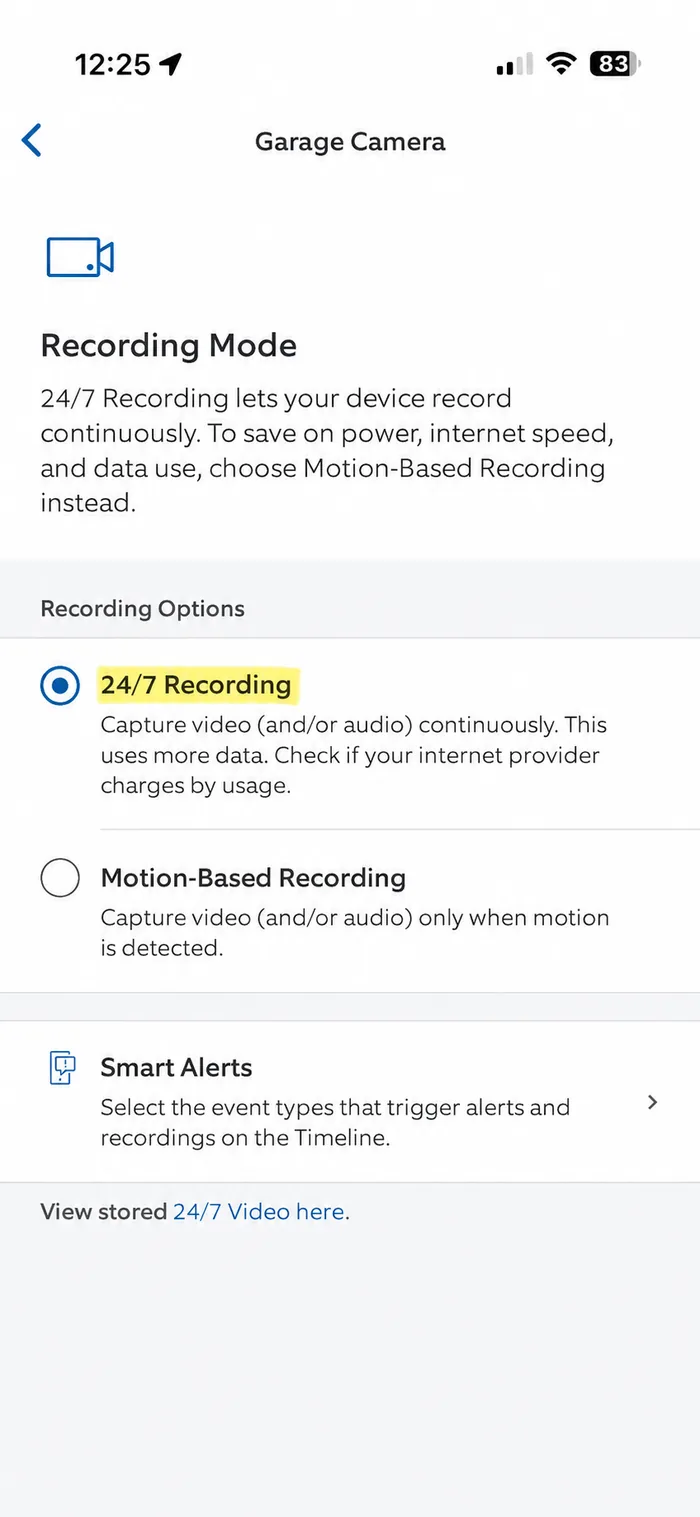
All set.
Recording Mode now reads 24/7 Recording. Repeat for any other camera you want continuously recorded.
Still stuck? Tell us which TV and camera you’re on — we usually reply within a day.
Contact support