
Video WallLIVE
TermsPrivacy

We use Google Analytics to see which pages people read and where setup goes wrong. It’s the only thing here that sets a cookie — no advertising trackers, and nothing sold to anyone.

Turn it off and we don’t load it at all — the script simply never runs.

Analytics cookies
On

Saved in this browser, on this device. Changing it reloads the page. Privacy policy

Ring camera app for Mac

Every Ring camera,
on your Mac.

Cameras and doorbells live on the desktop, in a real Mac app — floating windows, the menu bar, widgets and alerts. Available in the Ring Appstore.

Free for 30 days, then $1.99/month per camera. Cancel anytime.
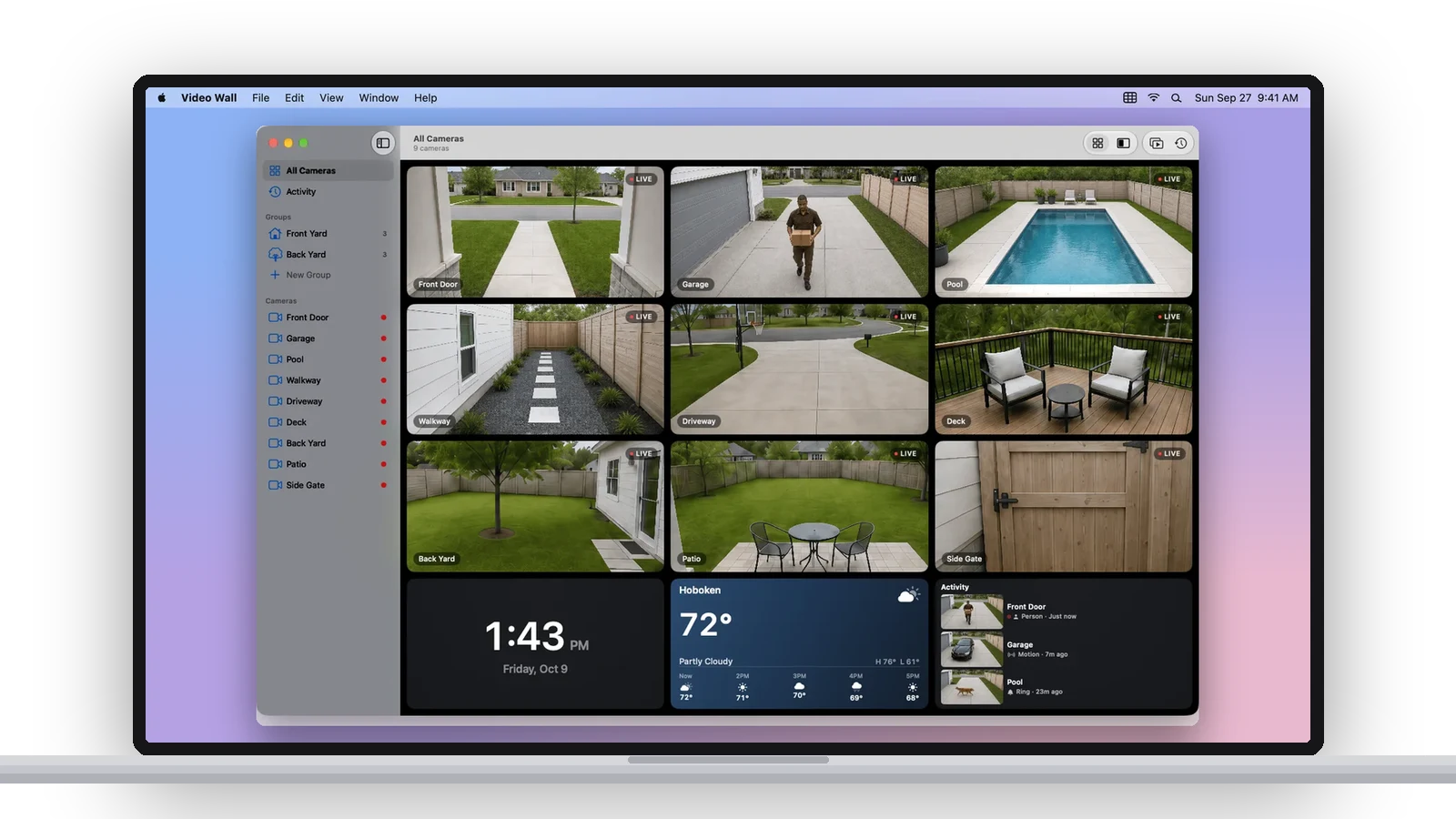
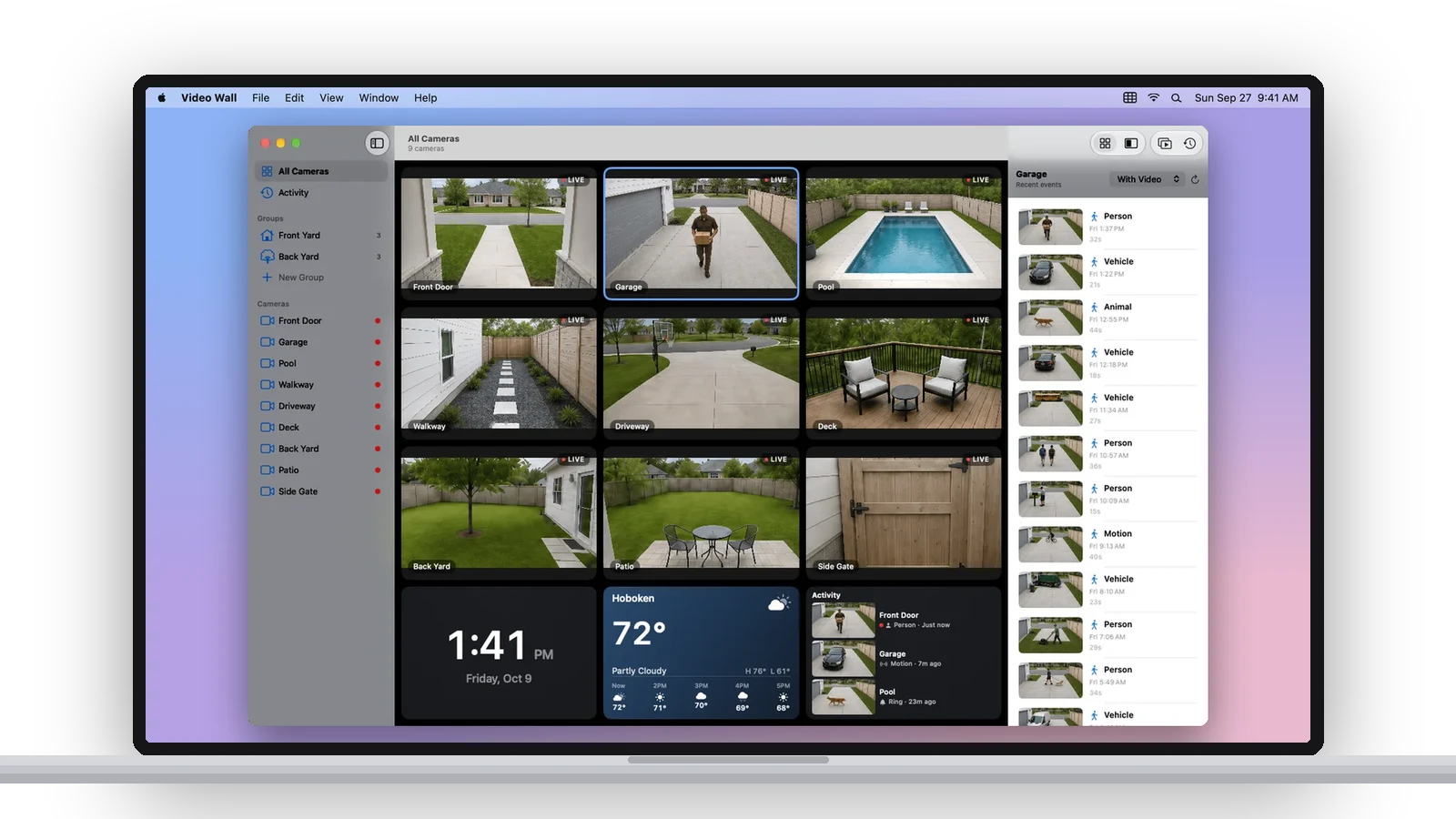
A MacBook showing the Video Wall window: a sidebar of cameras and groups beside nine Ring cameras live in a grid, with a clock, the weather and an activity feed

Built for Mac.

A native Mac app. Every Ring camera live in its own window, in a grid or featured layout, with groups in the sidebar and a clock, the weather and recent activity beside them. Keep it on one display or spread it across two. Every feature, button by button.

Picture in Picture for Mac.

Pop any camera into its own window and pin it on top, or send it to Picture in Picture. It stays on top while you work, and a doorbell ring can open that camera on its own.
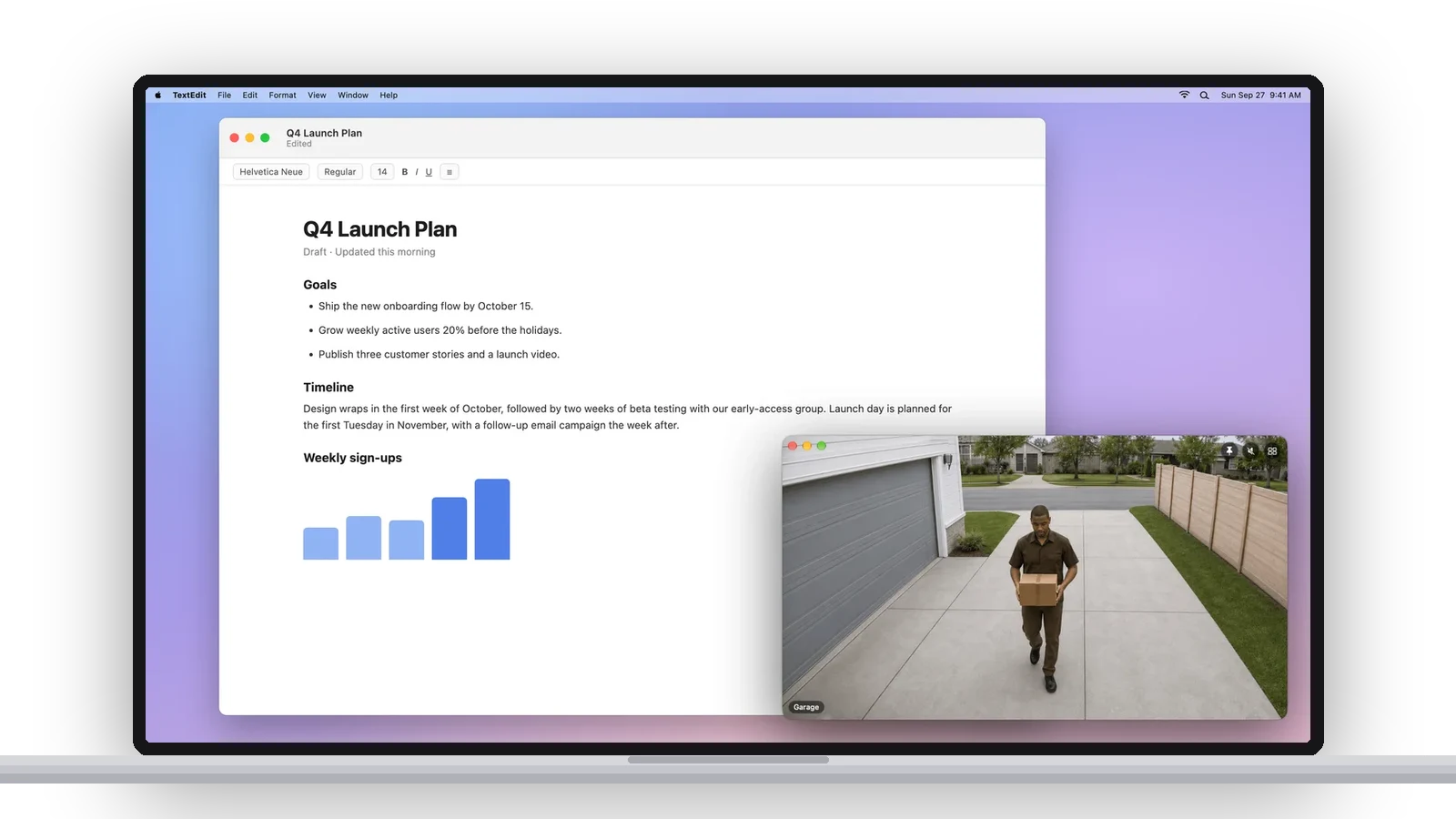
A MacBook with a document open and the Ring Garage camera floating over it in its own window, showing a delivery driver walking up the driveway
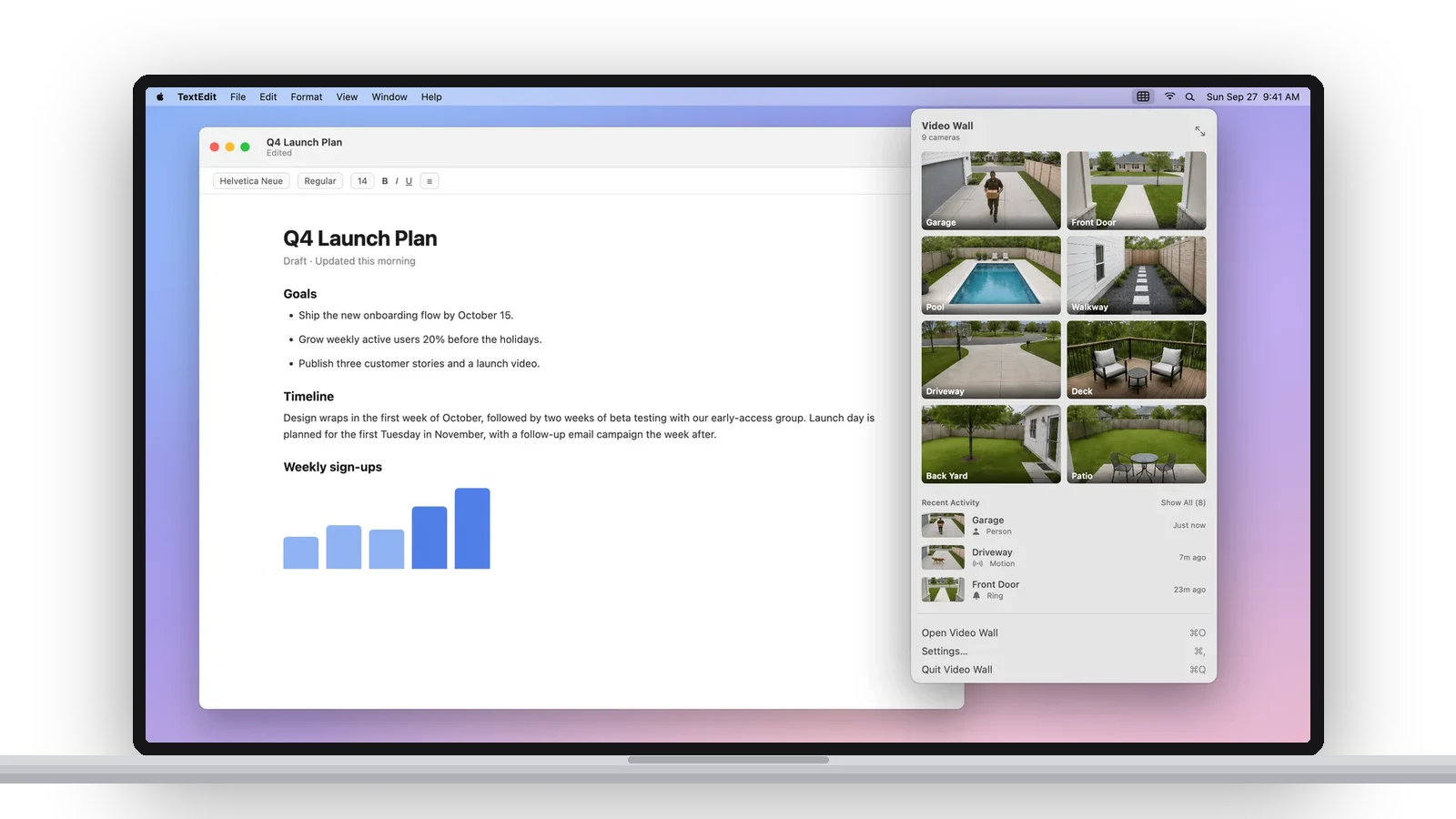
A MacBook with the Video Wall menu bar panel open over a document: eight camera thumbnails, Recent Activity with three events, and Open Video Wall, Settings and Quit Video Wall

Every camera, one click from the menu bar.

The icon in the menu bar is the whole app at a glance: a live thumbnail of every camera and the last few events. Click one and it opens. It keeps working after you close the window, and it’s what keeps alerts coming.

Alerts, with a picture.

Mac notifications for people, packages, vehicles, animals, motion and doorbell rings, each with a still from the camera. Choose which cameras and which kinds of events get through.
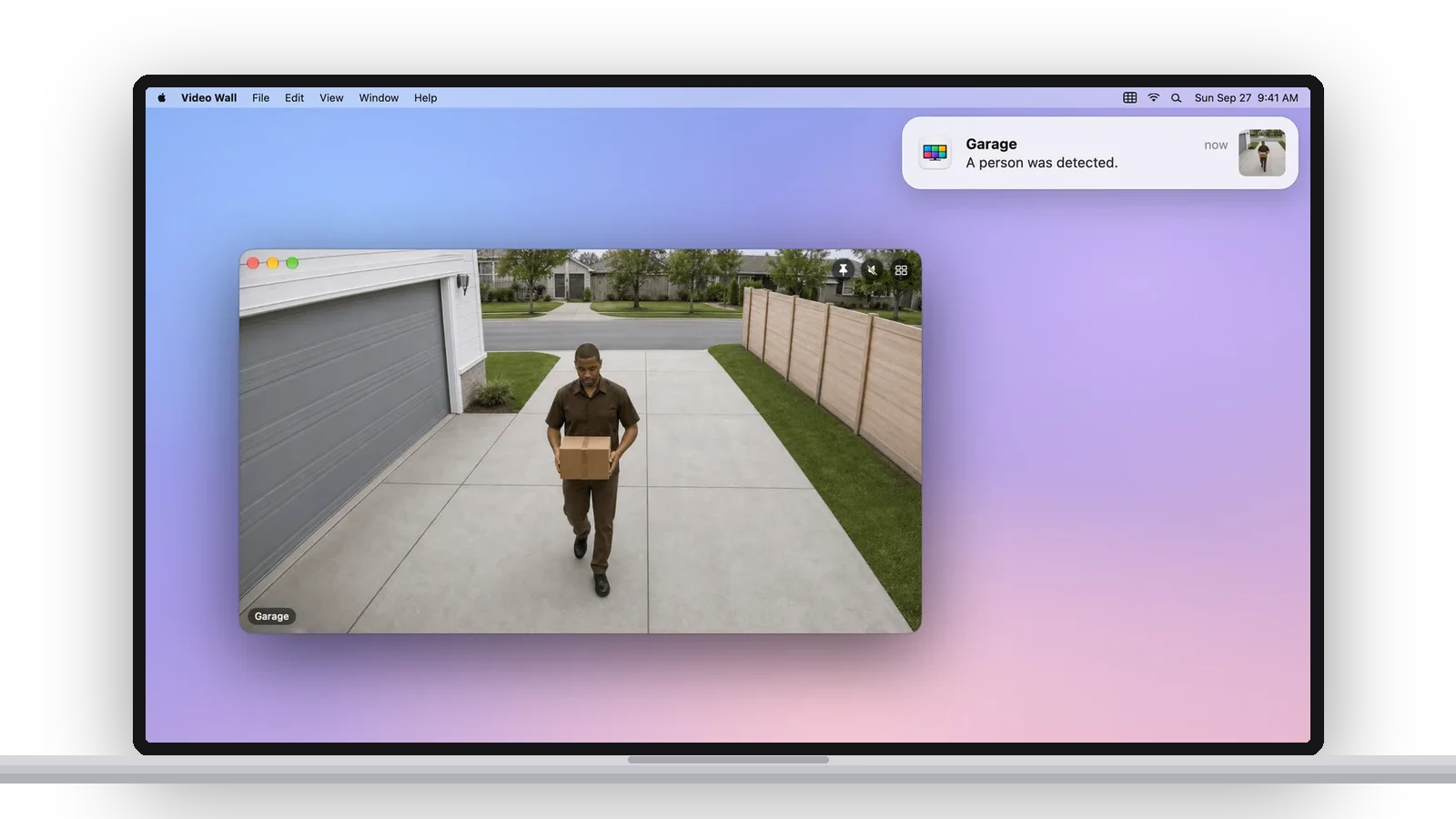
A MacBook showing a Video Wall notification, Garage, A person was detected, with the camera open in a floating window
A MacBook showing the Video Wall window with the History panel beside the camera wall, listing the Garage camera's recent events with thumbnails and a filter menu

Scroll back through your history.

Recent events beside the wall, filtered by People, Vehicles, Packages, Animals and more. Play any clip in its own window, save it to your Mac, or grab a snapshot from any live camera.

Cameras on the desktop, too.

Mac widgets, outside the app: one camera in three sizes, or a nine-camera wall, on the desktop or in Notification Center. Each shows the latest picture; click one and the camera opens live.
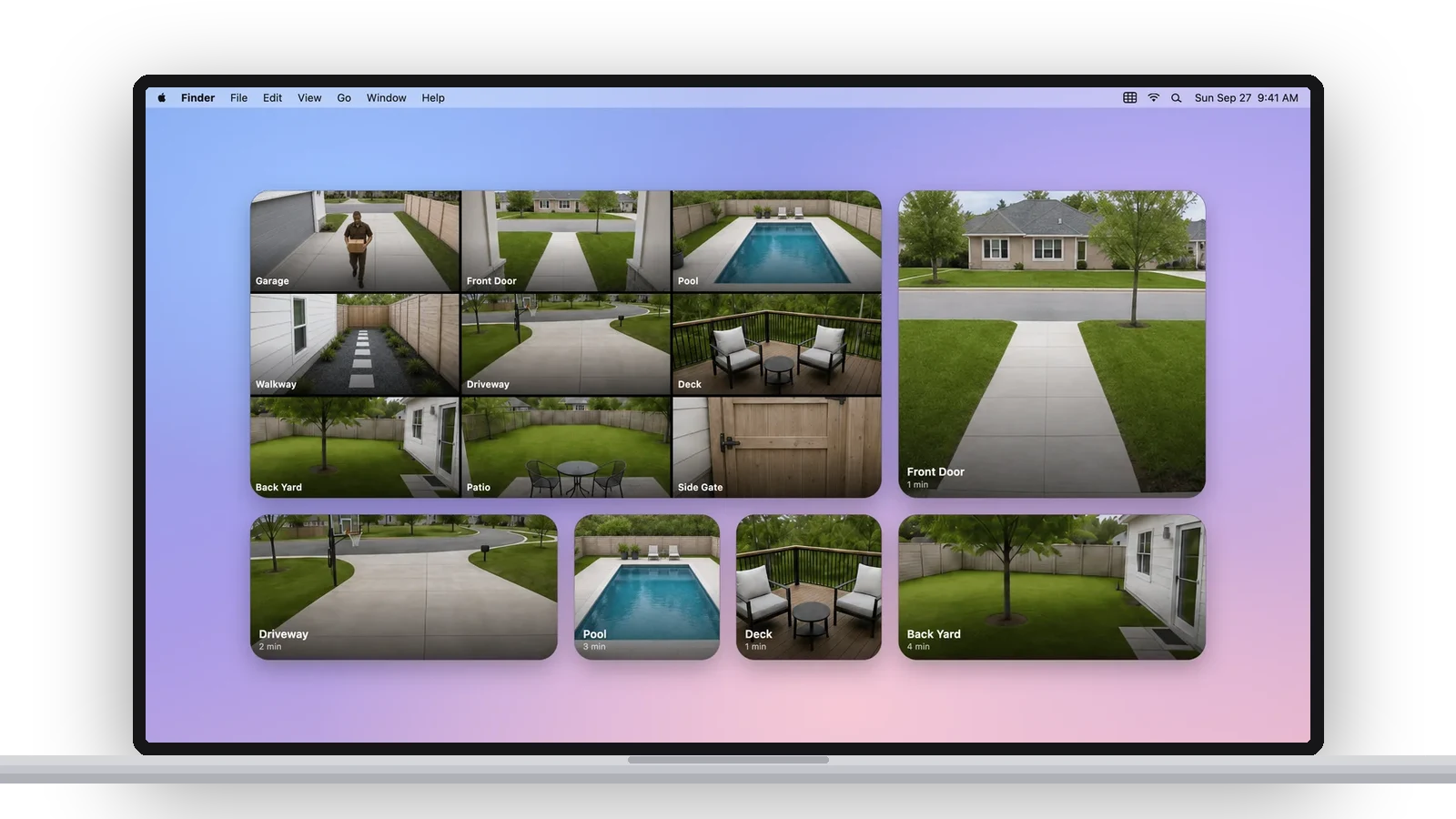
A MacBook with Video Wall desktop widgets: a nine-camera wall and single cameras in small, medium and large sizes
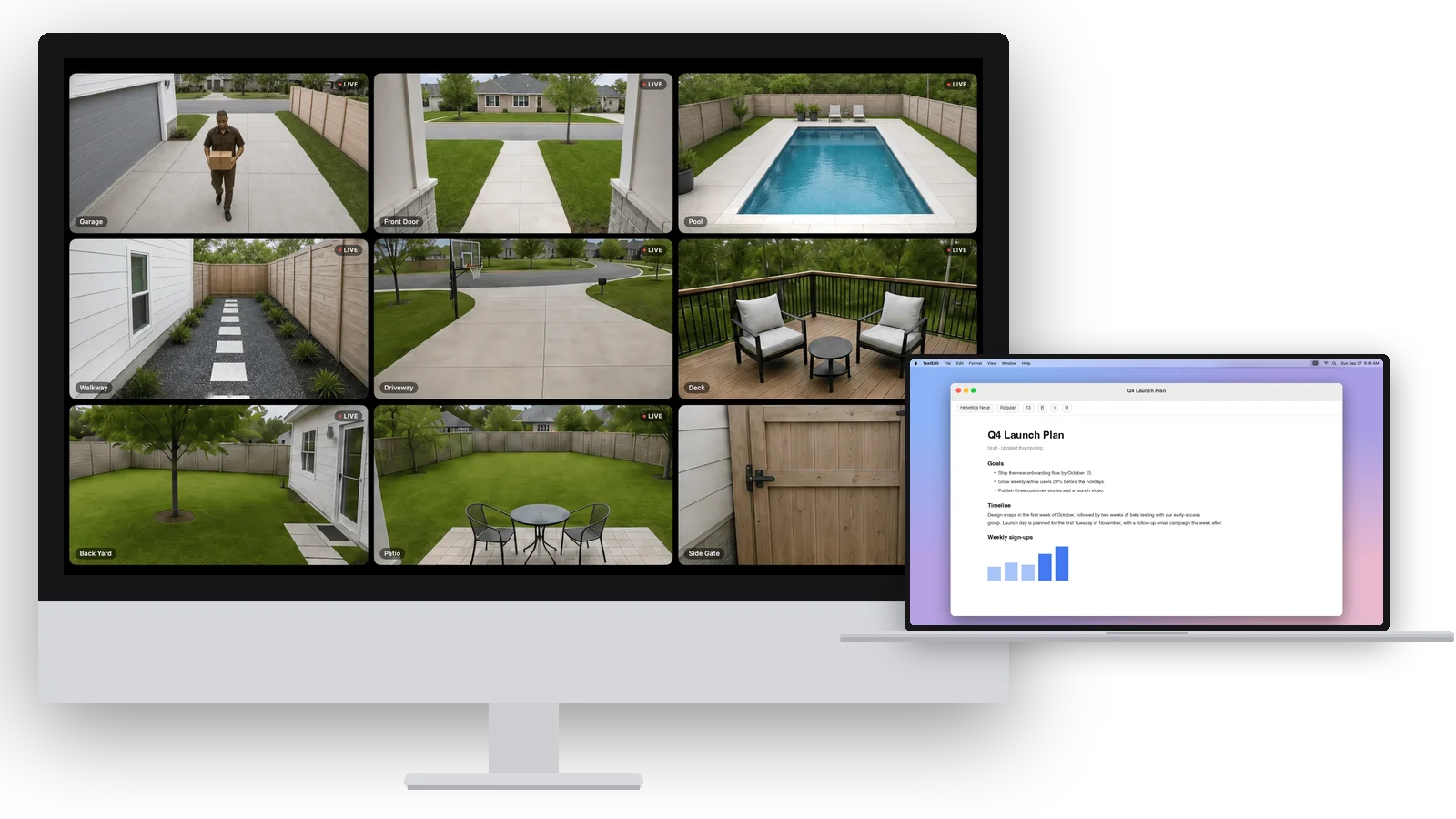
An iMac filled edge to edge with nine live Ring cameras in Wall Display mode, beside a MacBook with a document open

Turn any display into a video wall.

Wall Display mode fills a screen edge to edge with every camera and starts itself at login — a spare monitor or an old Mac becomes a dedicated security wall. Auto-Cycle shows each camera full screen in turn. How Wall Display works.

There are three ways to put Ring cameras on a Mac. One is a tab that keeps timing out. One is a server. Ours is an app.

1

Ring in a browser

Signing in to Ring's own site to look at your cameras.

  • A few cameras at most
  • Signs you out often
  • Times out while you're watching
  • Nothing in the menu bar, no alerts
2

Homebridge + Home app

A little server you build and script yourself.

  • A computer, running all night
  • Software to install and update
  • Scripts that break with updates
  • Ring logins that keep expiring
  • A free weekend to set it up
3

Video Wall Live

An app from the Mac App Store.

The Mac you're reading this on.

That’s the whole list.

Side by side.

 
Video Wall
Ring's site
Homebridge
Cameras at once
Every one
A few
Fixed grid
Stays up
All day
Times out
While the server runs
Stays signed in
Yes
Signs you out
Logins expire
Floating camera window
Any camera
No
Via the Home app
Picture in Picture
Built in
No
No
Menu bar
Every camera
No
No
Desktop widgets
Built in
No
No
Alerts with a picture
Built in
No
Via HomeKit
Event history
Beside the wall
Yes
No
Setup
2 minutes
Sign in
An afternoon
Maintenance
We handle it
None
Yours
What you need
Mac
Any Mac with Apple silicon or Intel, laptop or desktop
macOS
14 Sonoma or later
Ring
A Ring account with a Ring Protect plan, and Video Wall Live from the Ring Appstore (free for 30 days)
Cameras
Any Ring camera or doorbell
Internet
Broadband; each live camera is its own stream

One plan, every screen. The Mac app is free, and the Video Wall Live plan on your Ring account covers it along with every TV and browser you use. Already on a TV? Install the app, sign in with your Ring email, and your cameras are there. New to it? Follow the Mac setup guide.

Common questions.

Is there a Ring app for Mac?
Ring doesn’t publish one. Video Wall is the app that fills that gap — it’s in the Mac App Store as Video Wall Live Desktop. Install it, sign in with the email on your Ring account, and every camera appears.
Which Macs does it run on?
Any Mac running macOS 14 Sonoma or later — Apple silicon or Intel, laptop or desktop. It’s a native Mac app, not a web page in a frame, so it does the things you’d expect: a menu bar icon, windows you can pin on top, widgets, notifications and keyboard shortcuts.
Can I keep one camera on screen while I work?
Yes, two ways. Open a camera in its own window and click the pin to keep it above every other app, or choose Picture in Picture and macOS floats it in a corner. Either way the front door stays in view while you’re in a document or a call. See everything the Mac app does.
Do I need the web app or a TV app as well?
No. The Mac app is complete on its own. One plan covers every screen, though, so if you also have an Apple TV, Fire TV, Google TV or Roku, the same cameras are there too with nothing extra to pay.
How do I sign in on the Mac?
With the email on your Ring account: the app emails you a 6-digit code, you type it in, and the Mac stays signed in. No pairing code to carry over from a phone. The walkthrough is in Mac setup.

Every camera.
The big screen.

Video Wall integrates with Ring devices and is available in the Ring Appstore.

AVAILABLE ON

Free for 30 days, then $1.99/month per camera. Cancel anytime.

Start your free trial
Product news and tips

New features and the occasional tip, about once a month. Unsubscribe anytime.

Video Wall Live

Every Ring camera, live on your TV.

Want your cameras on your wrist too? Video Watch Live puts every Ring camera on your iPhone and Apple Watch.Visit Video Watch Live →
© 2026 Video Wall LiveTermsPrivacy

We use Google Analytics to see which pages people read and where setup goes wrong. It’s the only thing here that sets a cookie — no advertising trackers, and nothing sold to anyone.

Turn it off and we don’t load it at all — the script simply never runs.

Analytics cookies
On

Saved in this browser, on this device. Changing it reloads the page. Privacy policy

Video Wall for Ring is a third-party app and is not affiliated with, endorsed by, or sponsored by Ring or Amazon. Ring is a trademark of Ring LLC. As an Amazon Associate we earn from qualifying purchases. Some links to streaming devices are affiliate links; they never change what you pay.
Ring Camera App for Mac — Every Camera on Your Desktop — Video Wall Live