

Set up Video Wall on Fire TV
Two short parts: install the app on the Fire TV, then pair it from the Ring app on your phone. About five minutes end to end.
You’ll need
Any Fire TV Stick, Cube, or TVA Ring account with a Ring Protect plan
Part 1 — On your Fire TV
Install Video Wall Live, then scan the code it shows you.
Open the Appstore.
On your Fire TV home screen, select Appstore.
Search Video Wall Live.
Type Video Wall Live and select it in the results.
Several results look alike. Ours is the one with this icon: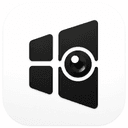 Video Wall LiveLook for this icon
Video Wall LiveLook for this iconSelect Download.
Its Appstore page opens. Check it reads Developer: Video Wall Live, then select Download.
Open Video Wall.
Once it installs, select Video Wall Live in your apps.
Scan the QR code.
Point your phone’s camera at the QR code to open the Video Wall Live page in the Ring Appstore — or go straight to videowalllive.com/ring. Leave this screen up — you’ll need the code on it at the end.
Part 2 — In the Ring app on your phone
Start your free trial, then enter the code from your TV.
Tap Start Free Trial.
On the Video Wall Live listing, tap Start Free Trial. The first 30 days are free, and you can cancel anytime in the Ring app.
Sign in to Ring if asked.
Use the same email and password as your Ring app. Already signed in? You won’t see this.
Agree and Continue.
Read the data sharing screen, then tap Agree and Continue.
Pick your cameras.
Choose the cameras you want on your TV. Tap Continue.
Enter the pairing code.
You’ll now enter the Video Wall app in your browser, where you’ll see your cameras. At the top, type the 8-character code shown on your TV, then tap Pair TV. This is also where you add more TVs later.
Your phone confirms it.
Look up — the TV is on, and your cameras are loading there. Keep the Video Wall app open in your browser if you like: it shows the same cameras, and it’s where you add more TVs.
You're paired.
The TV shows a short tour of things worth knowing, then your wall lights up.
Recommended next: turn on 24/7 recording for the cameras you watch most — it keeps the wall’s event history complete.
Adding another Fire TV?
One Ring account covers up to 10 TVs — each needs its own box.
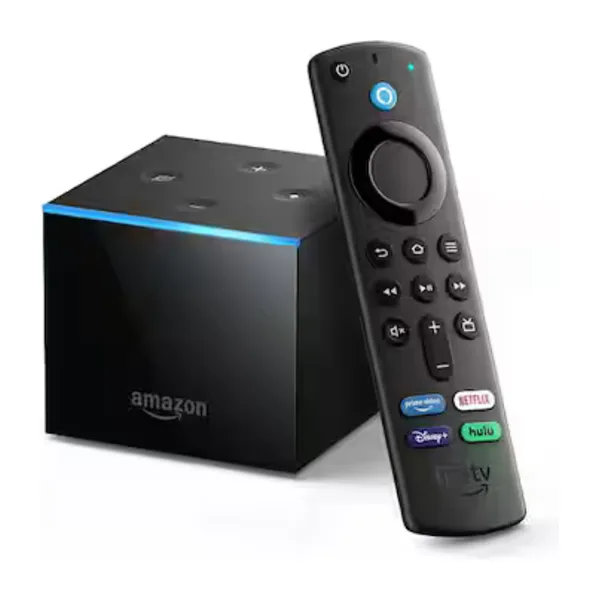
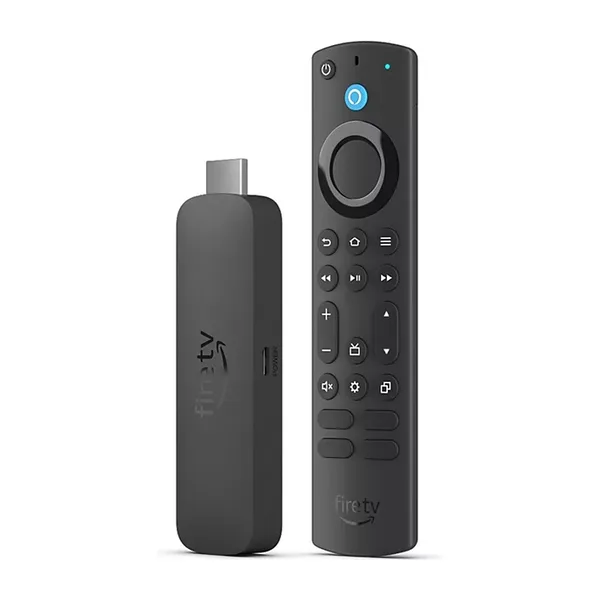
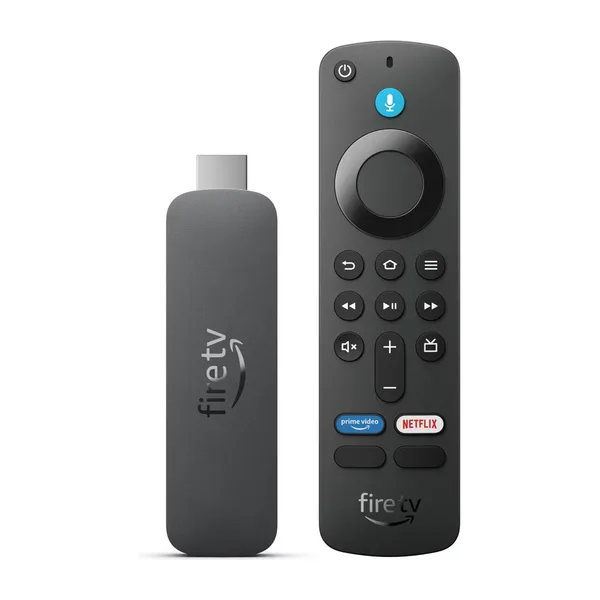
As an Amazon Associate we earn from qualifying purchases.
Still stuck? Tell us where the steps stopped matching what you see — we usually reply within a day.
Contact support