

Add or remove cameras
Adding and removing happens in your Ring account — it controls which cameras Video Wall can show at all, including a camera or doorbell you just bought, which starts out not connected.
Two different things: connecting and disconnecting here changes what Video Wall can access in your Ring account. If you only want a camera off the grid for now, hide it in the app on your TV instead — that keeps it connected.
Open Video Wall's device list in the Ring app.
In the Ring app, tap the menu, then Apps, then under My Apps select Video Wall Live.
Find the camera in the list.
The list shows every camera and doorbell on your Ring account, split in two. Each half has its own control: Connected devices have a toggle — switch one off to disconnect that camera from the app. Not connected devices have a Connect link — tap it to add one. A camera you just set up in Ring starts in the Not connected half.
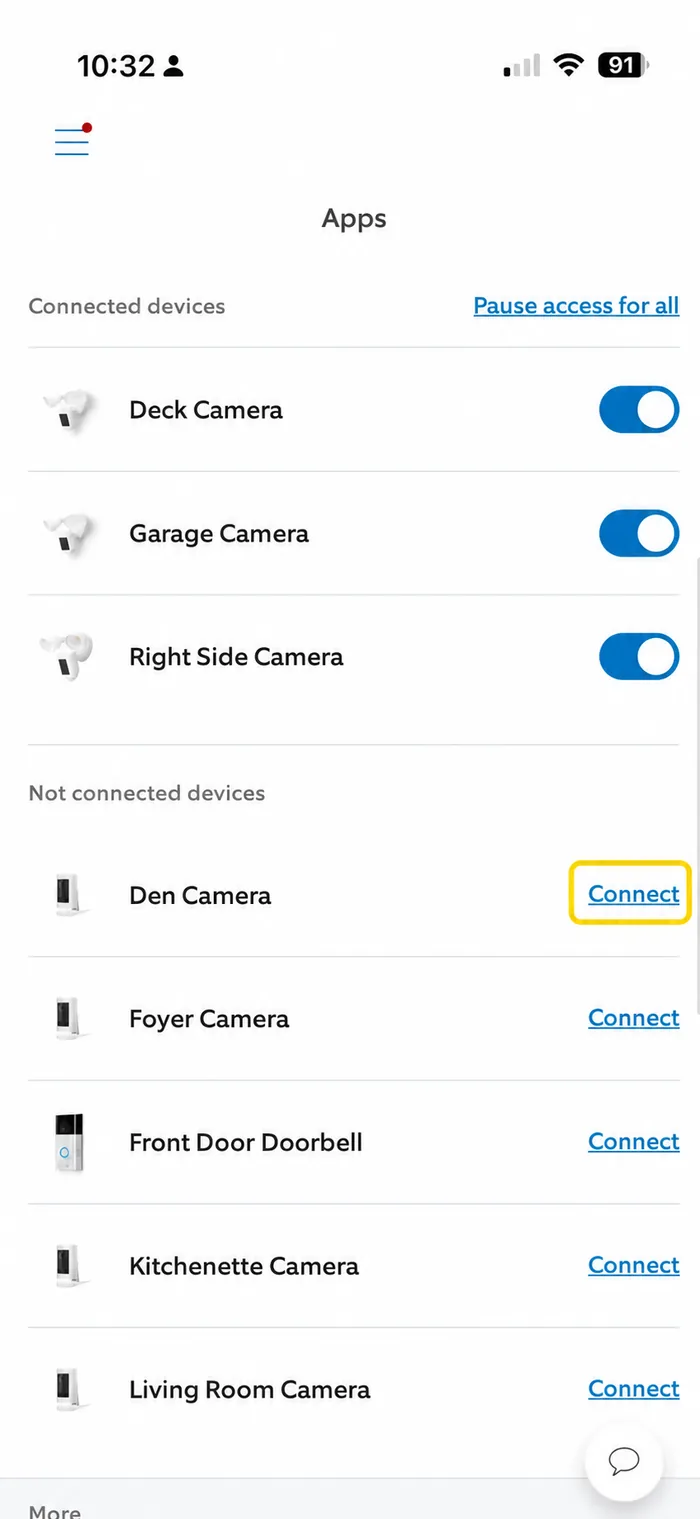
To add: tap Connect, then tap OK.
Tap Connect next to the device. A Connect this device? sheet appears — tap OK to confirm. The camera joins your wall on every paired TV within a few seconds.
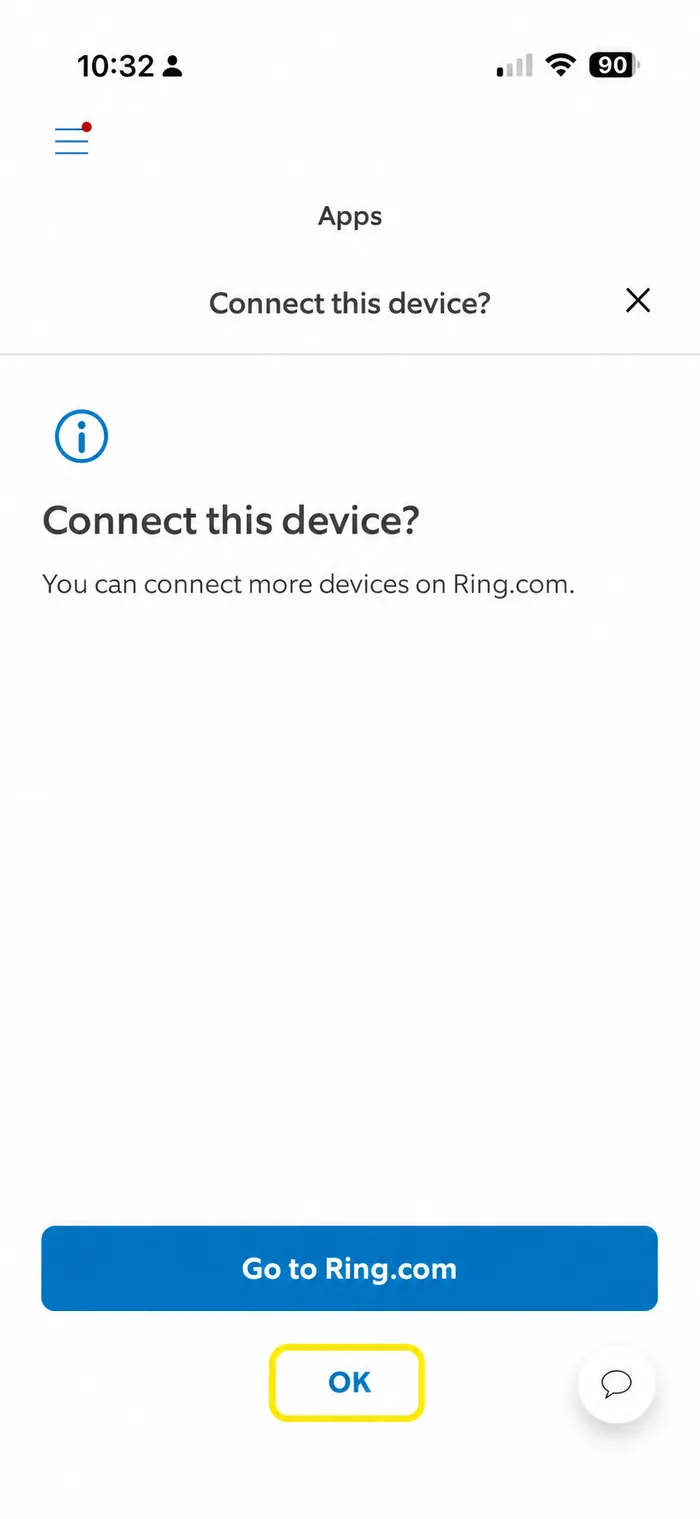
To remove: toggle a connected device off.
Switch the toggle next to a Connected device to off. That disconnects the camera from Video Wall and it comes off your wall everywhere.
Just decluttering? You don’t have to disconnect — hiding a camera on the TV keeps it connected but off the grid.
Connected it, but it's not on the wall?
The TV loads its camera list when the app opens, so one that was connected afterwards won’t appear on its own. Quit Video Wall and open it again — the new camera comes with it.
Still missing? Sign out and back in on the TV, which rebuilds the list from scratch. Nothing is lost — your cameras, subscription and other TVs are untouched.
Still missing? Sign out and back in on the TV, which rebuilds the list from scratch. Nothing is lost — your cameras, subscription and other TVs are untouched.
Still stuck? Tell us which TV and camera you’re on — we usually reply within a day.
Contact support