

Add or remove a TV
One Ring account covers up to 10 TVs, and they don’t have to be the same kind.
Need more than 10? Business and enterprise setups can have the limit raised — tell us what you’re running and we’ll sort it out.
Add a TV
Every TV is added from one you've already set up.
On a TV that's already paired, open Settings.
Select Pair Device (on Apple TV it’s under Devices).
Scan the QR code with your phone.
Or type the link shown under it. It opens already signed in, and works for 15 minutes.
Enter the code from the new TV.
Install Video Wall on the new TV and open it: it shows its own 8-character code. Type that code on your phone and tap Pair TV.
You're paired.
Its cameras load in about five seconds.
Remove a TV
Revoking signs a device out and frees its slot.
Open Settings → Paired Devices.
Do this on any TV that’s still paired — the list is the same everywhere.
Select Revoke next to the one you're removing.
Every TV and browser signed in to your Ring account is listed, with when each was paired. Mixed platforms sit side by side.
Confirm.
A dialog names the device. Choose Revoke, or Cancel to back out.
It returns to its pairing screen and can be paired again any time — your subscription and other TVs are untouched.
In the web app: A signed-in browser (say, “Chrome on Mac”) appears in Paired Devices too — remove it the same way.
Need a streamer for the second TV?
It doesn’t have to match the first one — the wall looks the same on all four.
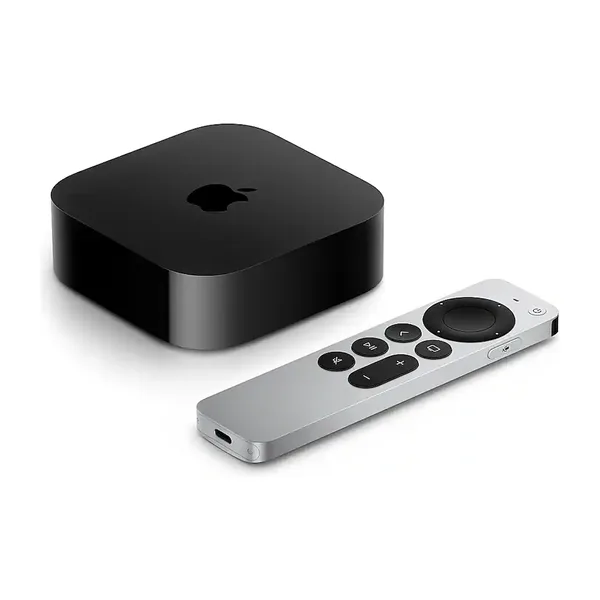 Apple TV 4K (4th generation)Pre-order · Nov 13View on Amazon ↗
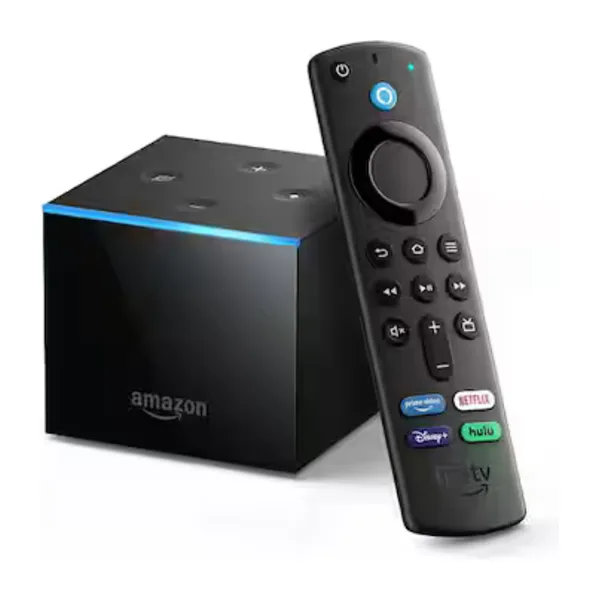 Fire TV CubeView on Amazon ↗
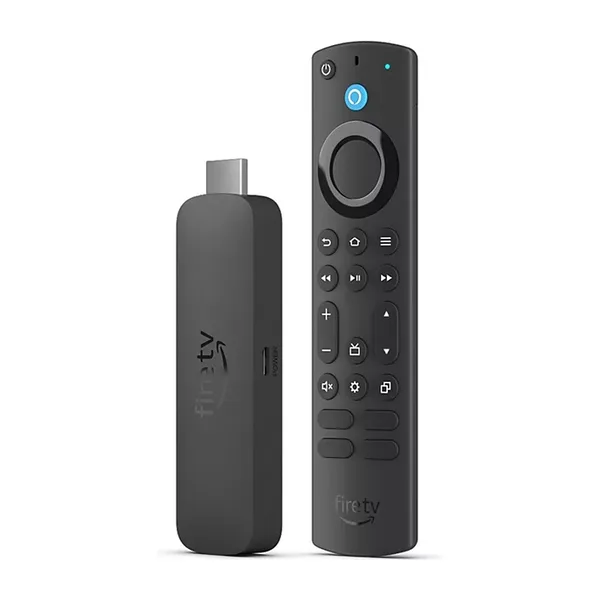 Fire TV Stick 4K MaxView on Amazon ↗
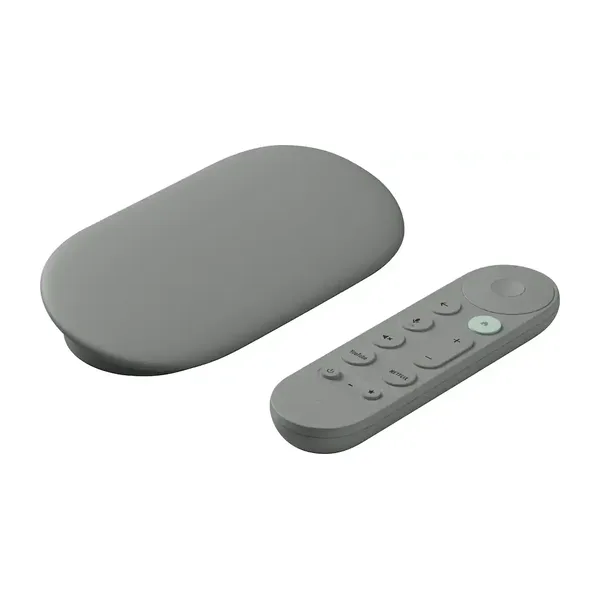 Google TV Streamer 4KView on Amazon ↗
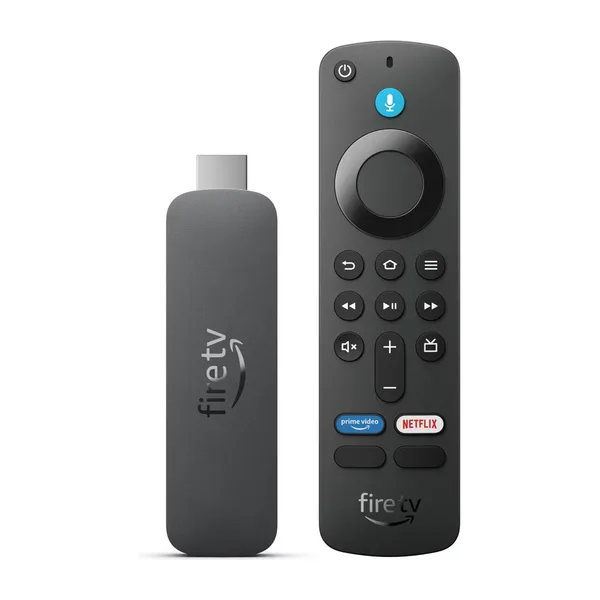 Fire TV Stick HDView on Amazon ↗
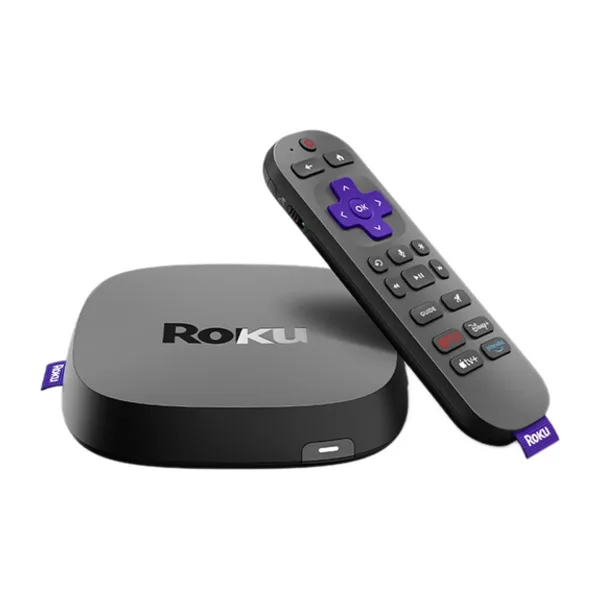 Roku UltraView on Amazon ↗
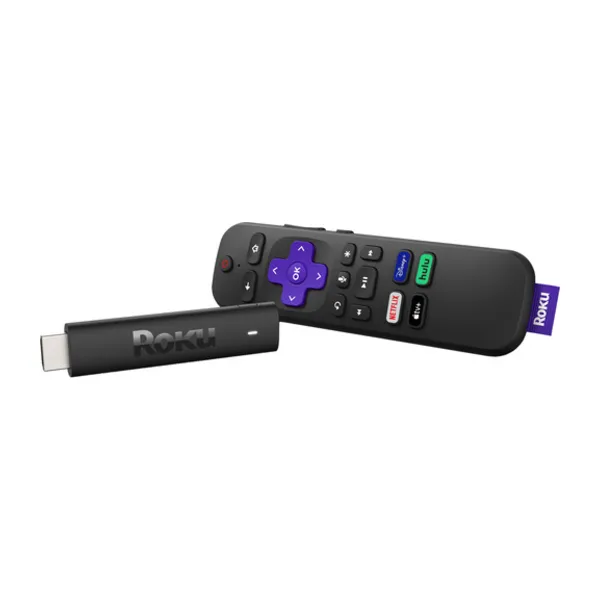 Roku Streaming Stick HDView on Amazon ↗
As an Amazon Associate we earn from qualifying purchases.
Compare them side by side for speed and value scores.
Still stuck? Tell us which TV and camera you’re on — we usually reply within a day.
Contact support