Video Wall bills as one add-on per camera on your Ring plan, so you can cancel a single camera or all of them. Either way it happens in your Ring account, not on the TV.
Do it in this order. Cancel the camera add-ons first, then remove the app. Deleting the app from your TV — or removing it in the Ring app — does not stop the billing on its own.
Cancel camera subscriptions
One add-on per camera, so the same four steps cancel one camera or every one of them.
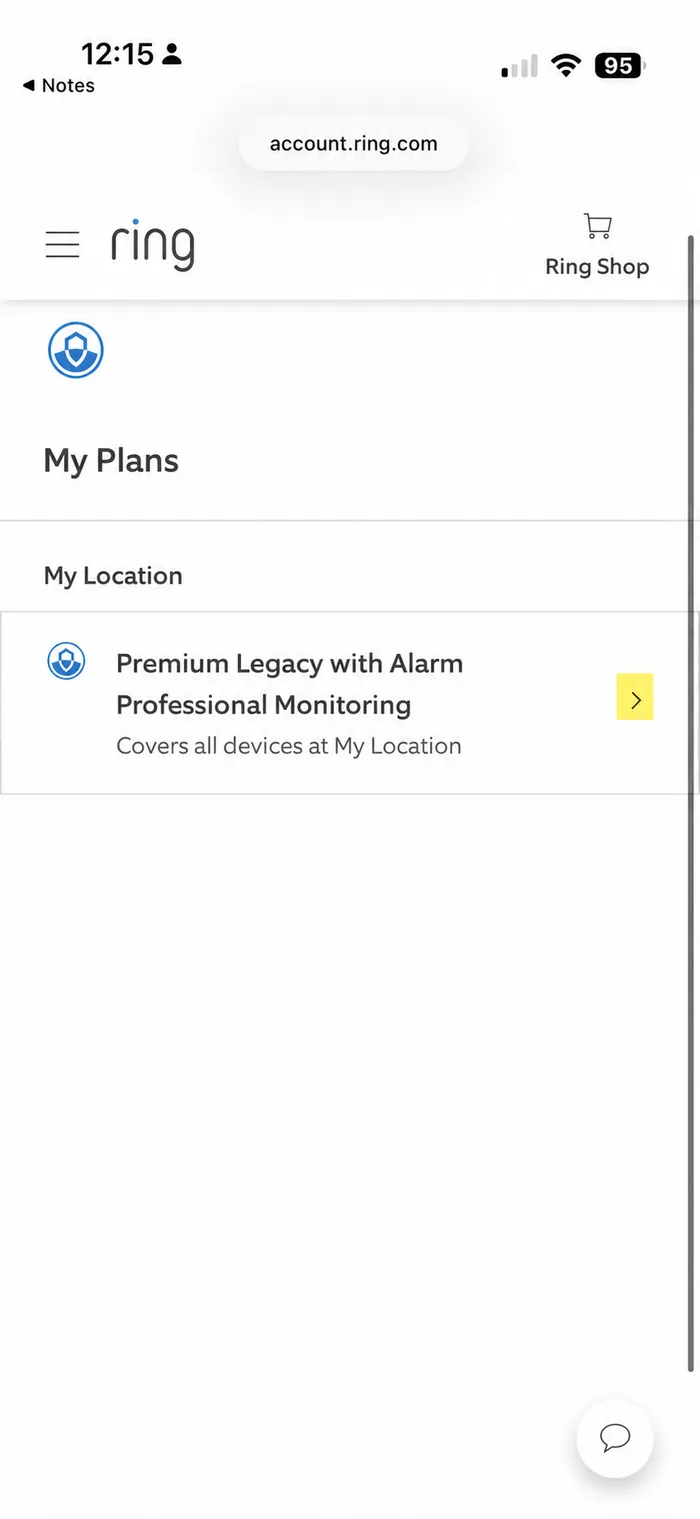
Under My Plans, select the Ring subscription covering the location whose cameras you want to change.
3
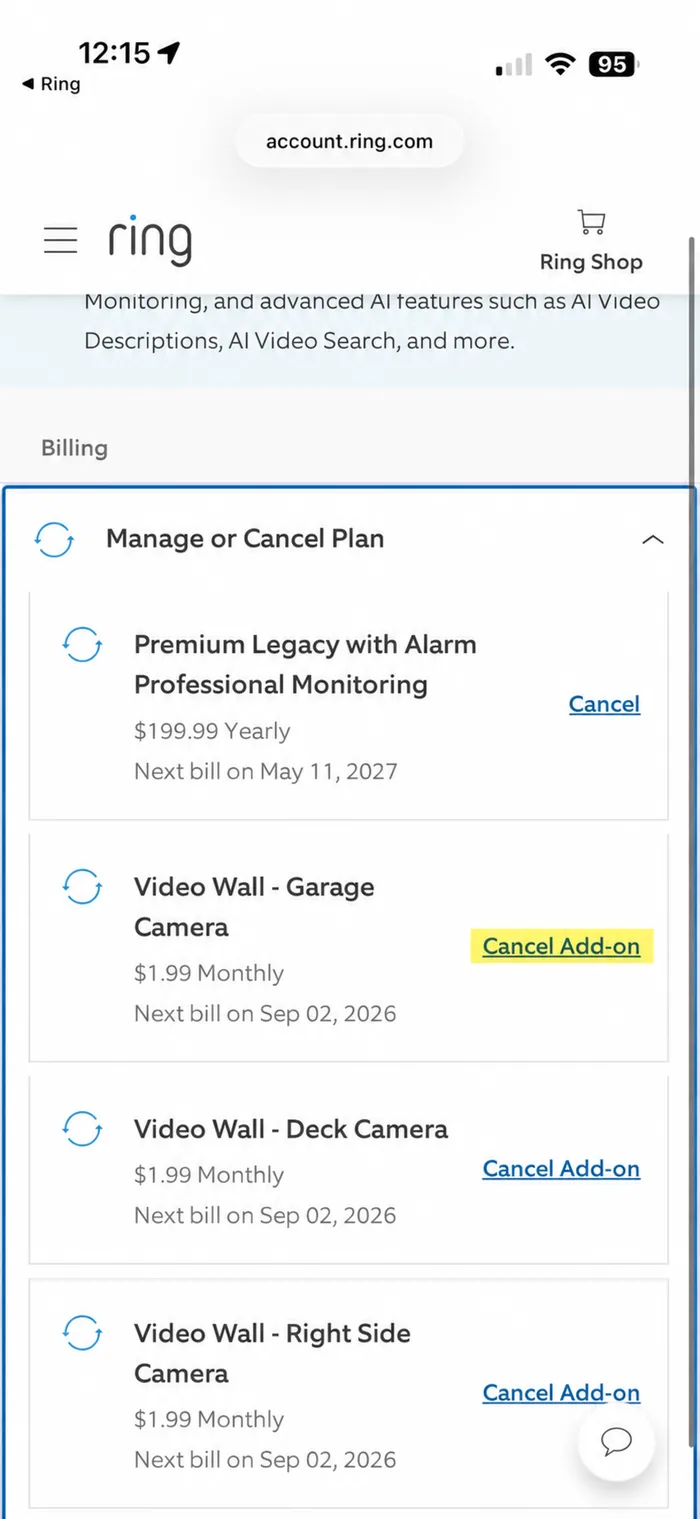
Scroll to Billing → Manage or Cancel Plan.
Your Ring plan is listed first, then one Video Wall line per camera — each named for the camera it covers, at $1.99/mo per camera. Find the camera you want to stop paying for.
4
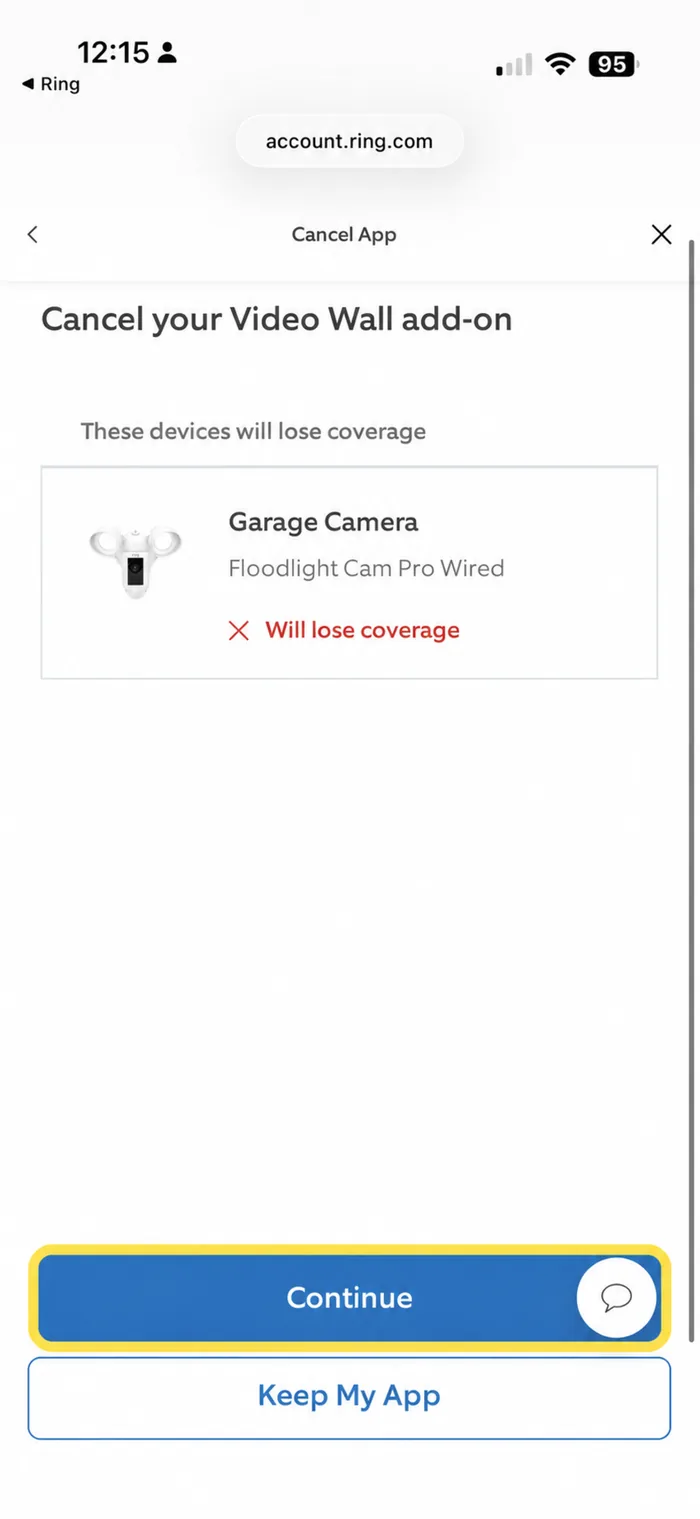
Select Cancel Add-on, then Continue.
Ring shows which camera loses coverage. Select Continue to confirm — or Keep My App to back out. The camera drops off your wall at the end of the billing period you’ve already paid for.
Each camera is its own add-on, so this is how you cancel one camera. To cancel everything, repeat for each Video Wall line until none are left.
Remove the app
Once no cameras are left on the plan, disconnect Video Wall from your Ring account.
5
In the Ring app, open Apps → Video Wall Live.
Tap the menu, then Apps, then Video Wall Live under My Apps.
6
Select Remove app.
This disconnects Video Wall from your Ring account entirely. Do it after the add-ons are cancelled — removing the app on its own doesn’t stop billing.
Want our records gone too? That’s a separate step — delete your account removes everything we store.
Changed your mind? Nothing is lost by cancelling — you can resubscribe at any time, from the same Billing screen or by connecting the camera again in the Apps section of the Ring app.
Timing. Cancel on any day before your next billing date to avoid future charges.
Rather not do it yourself? Ring Customer Support can cancel for you — contact Ring or call 800-656-1918.