

Video Wall Live is now in your browser
Video Wall Live started on the Apple TV, then Fire TV, Google TV and Roku. The question we kept getting was from people who wanted the same wall somewhere else: at a desk, on a tablet in the kitchen, on the spare monitor in a back office. Today it’s there. Video Wall in your browser runs the whole wall — every Ring camera you own, live, on one screen.
There’s nothing to install. It’s the same app and the same plan as the TV versions, so if you already subscribe, you can open it right now and sign in.
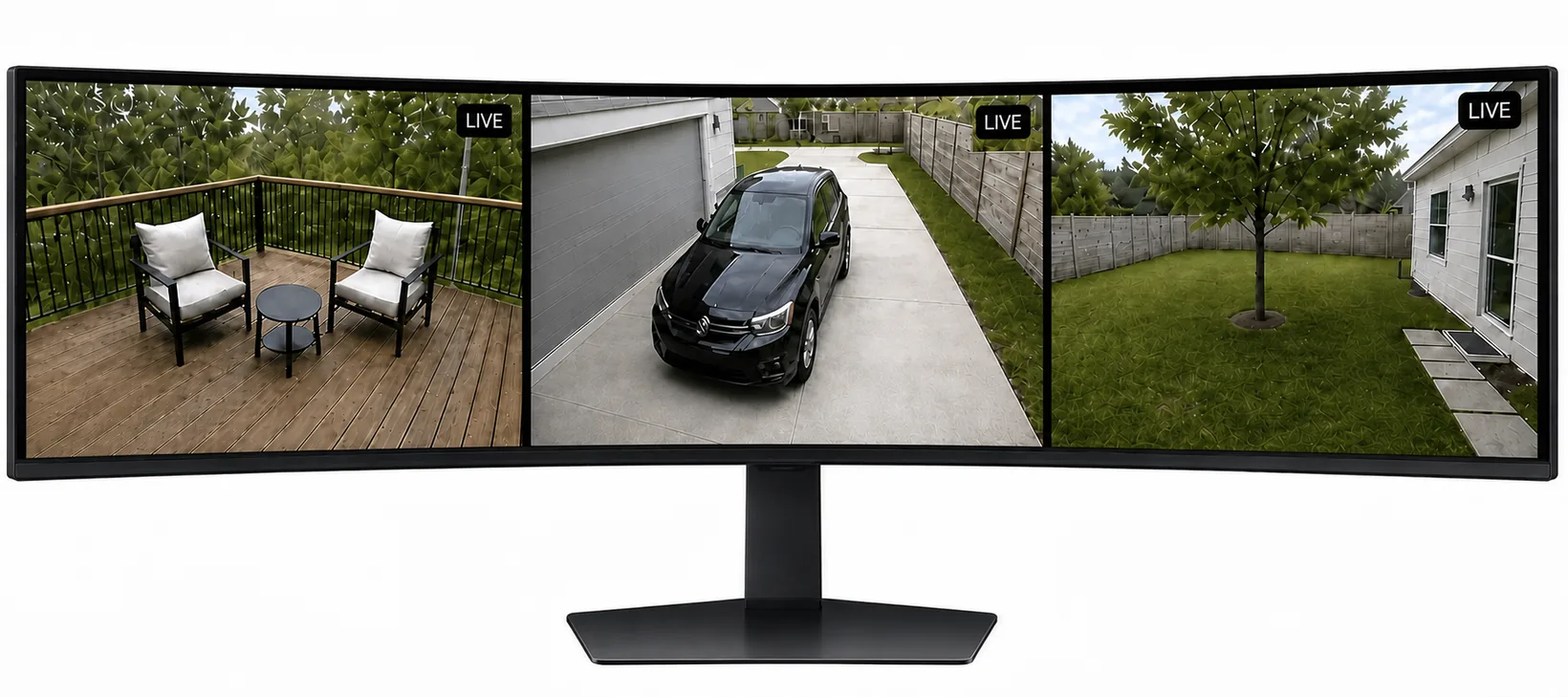
What it is
A browser tab that behaves like the TV app. Your cameras come up in a grid, they’re live, and the video streams straight from Ring to your screen — the same direct connection the TV apps use. We broker it; we never see or store your footage.
It works in any current browser — Safari, Chrome, Edge, or Firefox — on anything that runs one: a Mac or PC, an iPad or Android tablet, a Chromebook, or a smart TV’s own browser.
What you can do
- Fullscreen a camera with a click, sound included. Pinch or scroll to zoom.
- Pop a camera out in Picture-in-Picture and keep working — it floats above your other windows in Chrome and Edge.
- Auto-Cycle through every camera, one at a time, hands off.
- Drag tiles into the order you want, with a mouse or a finger.
- Save walls — one layout for a quick look around, another for the cameras you actually watch — and switch between them from the top bar.
- Kiosk View turns a spare screen into a dedicated wall: no controls, and the screen won’t sleep.
It also gets out of the way. When the tab is hidden or you step away, the streams pause; come back and they pick up where they left off.
Saved walls and Kiosk View are browser-only for now — the TV apps don’t have them yet.
Where it ends up
The requirement is a current web browser, which turns out to be a low bar. These are the three that surprised us.
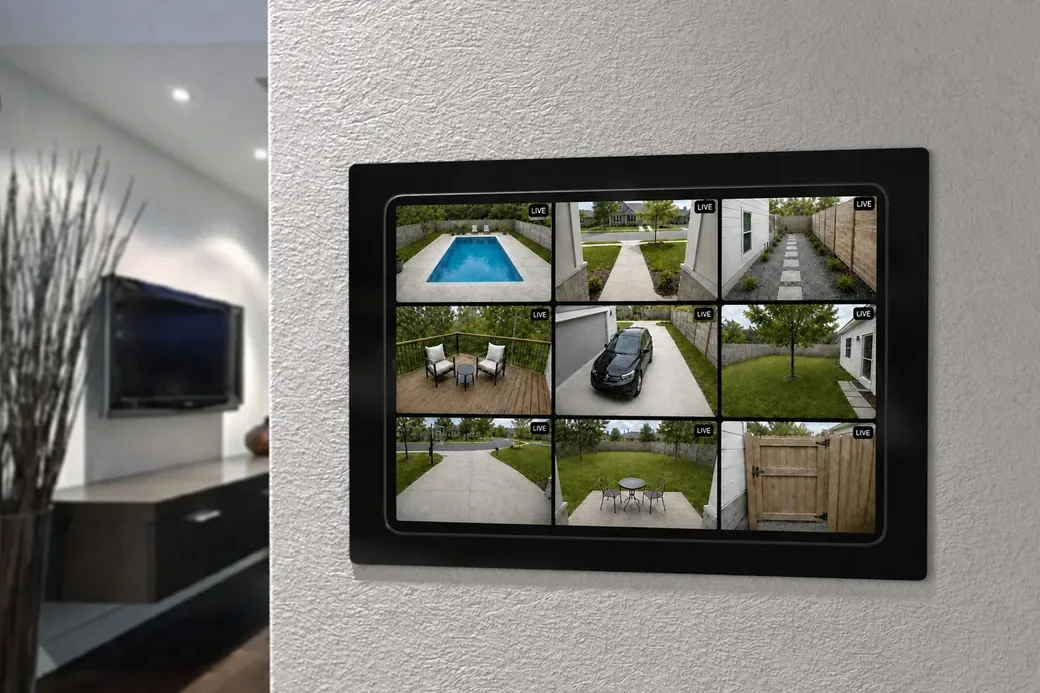
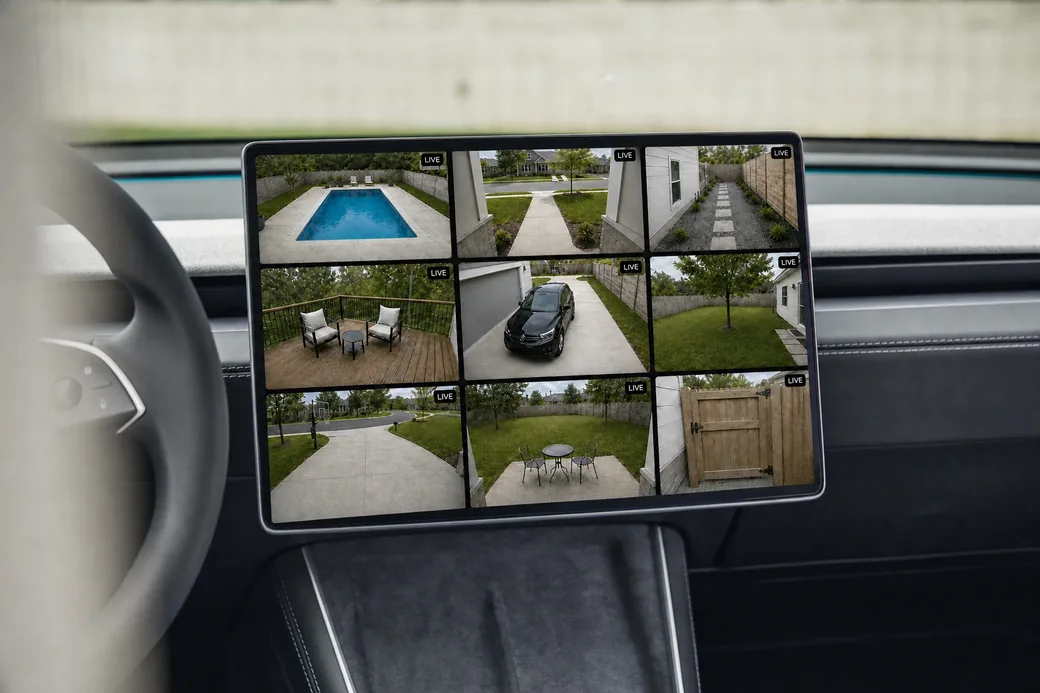
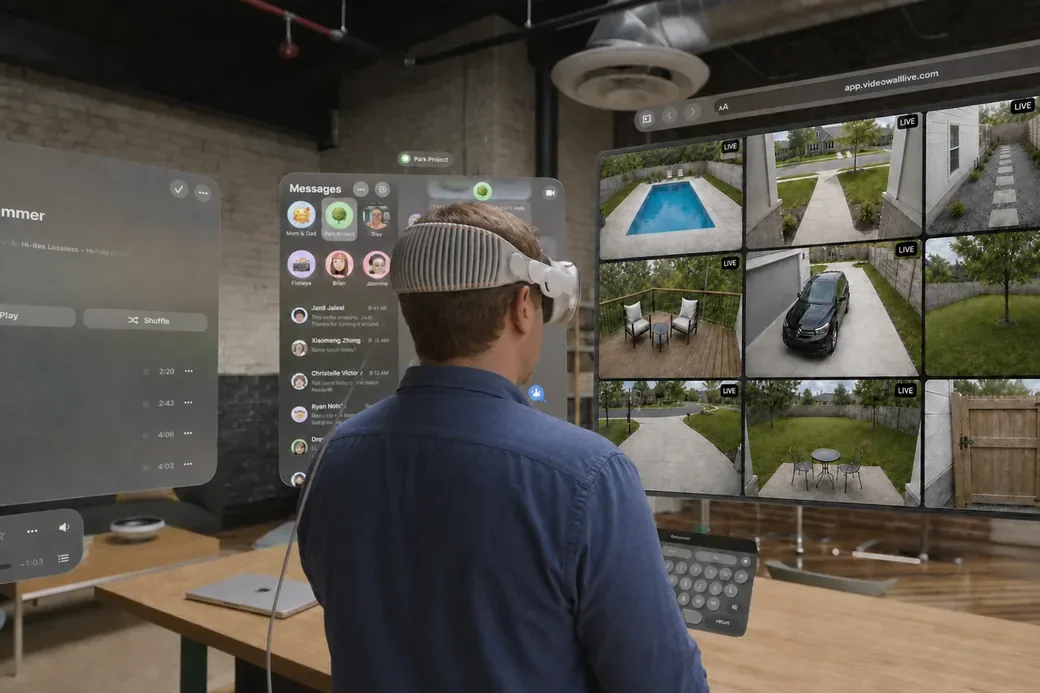
None of these needed anything from us. That’s the argument for building it as a web page rather than a fifth native app: the list of places it runs isn’t a list we maintain.
How to open it
Already using Video Wall? Open Video Wall in your browser and choose Email me a sign-in link — open the link on that device and the browser signs itself in. Or pick Pair with a code and enter the code from your phone, the same way you paired a TV.
New to Video Wall? Start the plan in the Ring Appstore — it’s free for 30 days, then $1.99/month per camera — pick your cameras, and choose Web Browser when it asks where you’ll watch. Your wall opens signed in. The step-by-step guide has the screenshots.
It doesn’t replace the TV app
One plan covers every screen you own, so the browser is an addition, not a swap. The living-room Apple TV keeps doing what it does; the browser is for the screens that were never going to have an app — the laptop you already have open, the tablet on the counter, the monitor in the back.
If you want it on a TV as well, the apps are on Apple TV, Fire TV, Google TV, and Roku, and a browser session shows up in your Paired devices list like any other screen — so you can sign it out from a TV whenever you want.
Open Video Wall in your browser, or read the setup guide. Something not working the way it should? Tell us — we usually reply within a day.
New features, new platforms and tips for your wall, about once a month. Unsubscribe anytime.